Dictionary
Dictionary is a component that allows to select single value from dropdown.
Tips
Use for dictionaries or slowly-growing entities, e.g. no more than 1000 values (all values are loaded in memory). Otherwise, use inlinePickList
Basics
Dictionary can configurable:
- Enum
- Dictionary (since release 2.0.9)
Not recommended.LOV deprecated (since release 2.0.9)
Dictionary enables adding, deleting, and modifying its values through the administrative interface, so it should remain independent of business logic.
If the dictionary is tied to business logic, it is recommended to use Enum to prevent modifications or deletions via the administration panel.
How does it look?
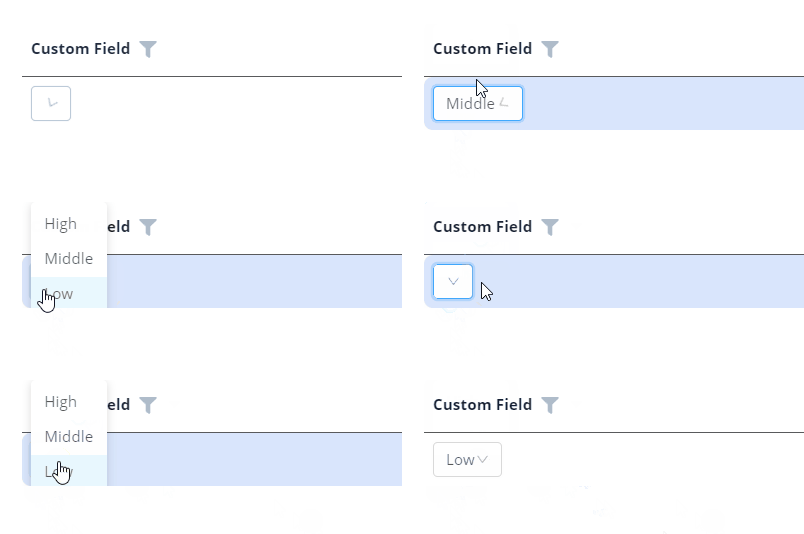
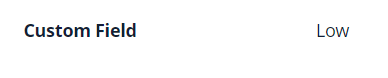
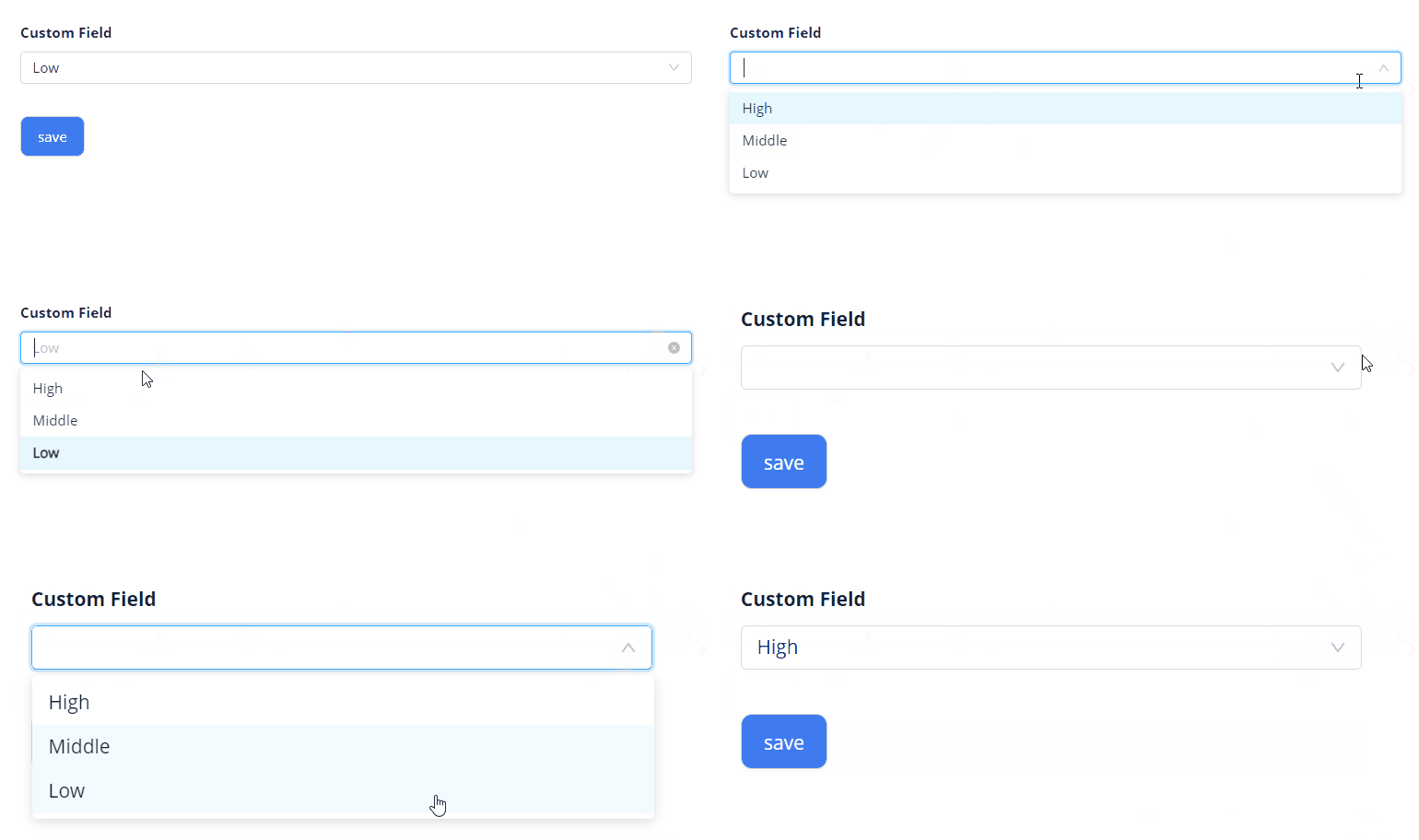
How to add?
Example
Step 1 Download plugin download Intellij Plugin
Step 2 Add dictionary field to an existing form widget
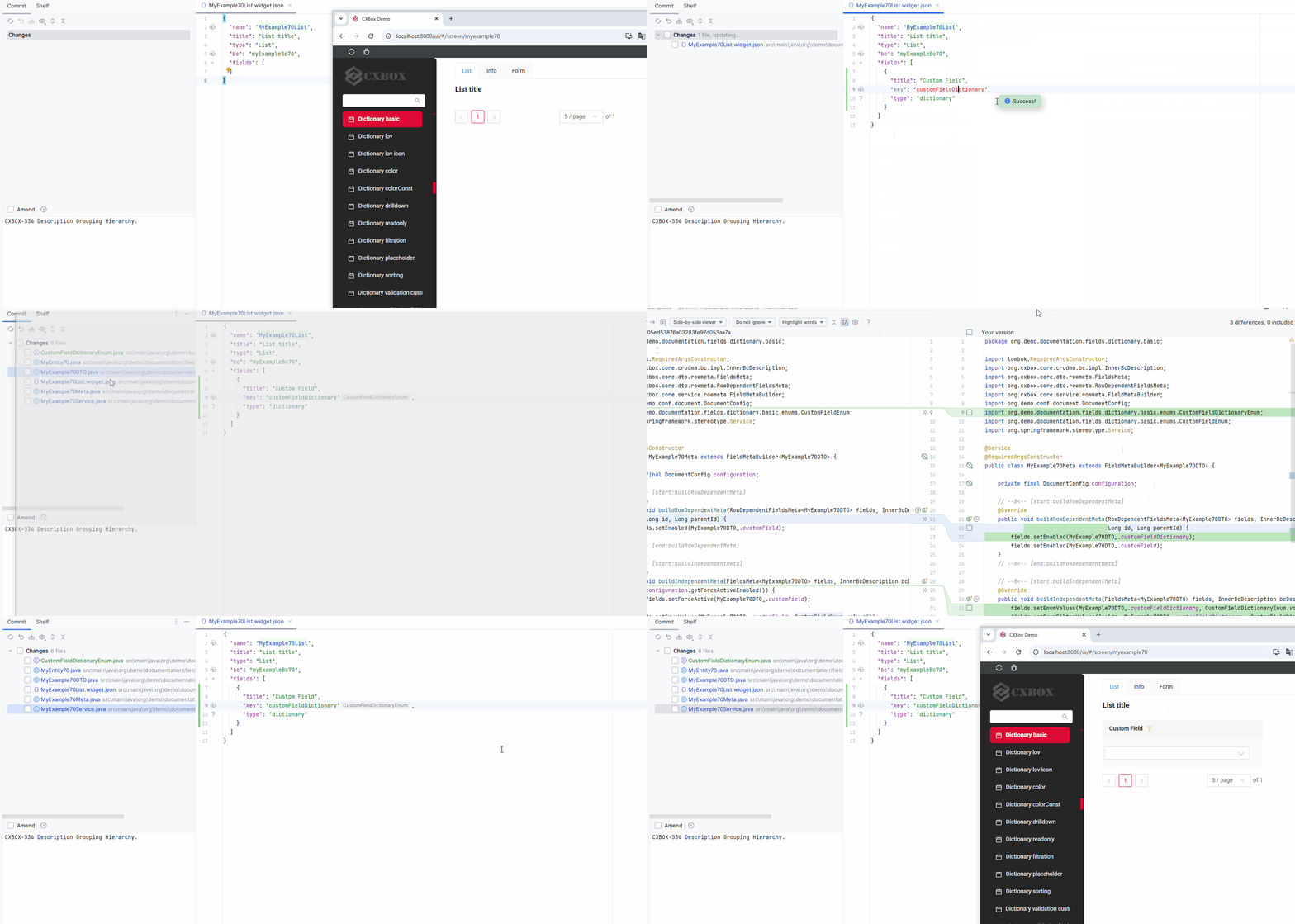
Add field to .widget.json.
- Step1 Create Enum. Best practice: storing enum name in the Database and using a separate field for displayed UI values
@Getter @AllArgsConstructor public enum CustomFieldEnum { BELGOROD("Belgorod region"), BRYANSK("Bryansk region"), VLADIMIR("Vladimir region"), VORONEZH("Voronezh region"), IVANOVO("Ivanovo region"), KALUGA("Kaluga region"), KOSTROMA("Kostroma region"), KURSK("Kursk region"), MOSCOW("Moscow region"), ORYOL("Oryol region"), RYAZAN("Ryazan region"), SMOLENSK("Smolensk region"), TAMBOV("Tambov region"), TVER("Tver region"); @JsonValue private final String value; public static CustomFieldEnum getByValue(@NonNull String value) { return Arrays.stream(CustomFieldEnum.values()) .filter(enm -> Objects.equals(enm.getValue(), value)) .findFirst() .orElse(null); } } - Step2 Add Enum field to corresponding BaseEntity.
    @Entity
    @Getter
    @Setter
    @NoArgsConstructor
    public class MyEntity extends BaseEntity {

        @Enumerated(value = EnumType.STRING)
        @Column
        private CustomFieldEnum customField;

    }
- Step3 Add Enum field to corresponding DataResponseDTO.
    @Getter
    @Setter
    @NoArgsConstructor
    public class MyExampleDTO extends DataResponseDTO {

        @SearchParameter(name = "customField", provider = EnumValueProvider.class)
        private CustomFieldEnum customField;

        public MyExampleDTO(MyEntity entity) {
            this.id = entity.getId().toString();
            this.customField = entity.getCustomField();
        }

    }
-
Step4 Use fields.setEnumValues in the appropriate FieldMetaBuilder to ensure the frontend reseives the list of values in the /row-meta method under "values" tag.
If the values list is dependent on a parent field, use fields.setEnumValues within the buildRowDependentMeta method to dynamically set it based on the parent.
    @Override
    public void buildIndependentMeta(FieldsMeta<MyExampleDTO> fields, InnerBcDescription bcDescription, Long parentId) {
        if (configuration.getForceActiveEnabled()) {
            fields.setForceActive(MyExampleDTO_.customField);
        }
        fields.setEnumValues(MyExampleDTO_.customField, CustomFieldEnum.values());
    }
- Step5 Add to .widget.json.
- Step5 Add to .widget.json.
- Step5 Add to .widget.json.
(since release 2.0.9)
Step 1. Configurable dictionary. Add description and value dictionary to DICTIONARY.csv.
TYPE;KEY;VALUE;DISPLAY_ORDER;DESCRIPTION;ACTIVE;ID
REGIONS;MOSCOW;Moscow;;;;
REGIONS;SAINT PETERBURG;St. Petersburg;;;;
REGIONS;KOSTROMA;Kostroma;1;;;
REGIONS;SYKTYVKAR;Syktyvkar;2;;;
REGIONS;NewYork;New York;3;;;
Step 2. Create record = name type dictionary implements Dictionary (If a dictionary type includes underscores, its name is transformed into CamelCase by removing the underscores and capitalizing the first letter of each word.)
public record Regions(String key) implements Dictionary {

    public static final Regions SAINT_PETERBURG = new Regions("SAINT_PETERBURG");

    public static final Regions MOSCOW = new Regions("MOSCOW");

}
Step 3. Add field with new record to corresponding BaseEntity.
@Entity
@Getter
@Setter
@NoArgsConstructor
public class MyEntity extends BaseEntity {
    @Column
    private String customField;

    @Column
    private Regions customFieldDictionary;
}
Step 4. Add field with new record to corresponding DataResponseDTO.
Info
if you microservice uses hibernate, then add dependency, that will allow you to use org. cxbox. dictionary. hibernate. DictionaryType under entity column, e. g. @Type(DictionaryType. class):
<dependency>
    <groupId>org. cxbox</ groupId>
    <artifactId>cxbox-dictionary-hibernate</ artifactId>
</ dependency>
Also, you can turn on auto type registration setting org. cxbox. dictionary. enable_types_contributor=true in hibernate properties, e. g. in spring:
<dependency>
    <groupId>org. cxbox</ groupId>
    <artifactId>cxbox-dictionary-api</ artifactId>
</ dependency>
then @Type(DictionaryType. class) can be optionally skipped under column, because system will register type for all Dictionary implementations. enable_types_contributor feature is experimental - please, use @Type(DictionaryType. class) under entity column as fallback varian
@Getter
@Setter
@NoArgsConstructor
public class MyExampleDTO extends DataResponseDTO {

    @SearchParameter(name = "customField")
    private String customField;

    @SearchParameter(name = "customFieldDictionary", provider = DictionaryValueProvider.class)
    private Regions customFieldDictionary;

    public MyExampleDTO(MyEntity entity) {
        this.id = entity.getId().toString();
        this.customField = entity.getCustomField();
        this.customFieldDictionary = entity.getCustomFieldDictionary();
    }
}
Step 5. Use fields.setDictionaryValues in the appropriate FieldMetaBuilder to ensure the frontend reseives the list of values in the /row-meta method under "values" tag.
If the values list is dependent on a parent field, use fields.setEnumValues within the buildRowDependentMeta method to dynamically set it based on the parent.
    @Override
    public void buildRowDependentMeta(RowDependentFieldsMeta<MyExampleDTO> fields, InnerBcDescription bcDescription,
                                      Long id, Long parentId) {
        fields.setEnabled(MyExampleDTO_.customField);
        fields.setEnabled(MyExampleDTO_.customFieldDictionary);
        fields.setDictionaryValues(MyExampleDTO_.customFieldDictionary);
    }
Step 6. Add fields.setDictionaryFilterValues to corresponding FieldMetaBuilder.
The front-end requires us to display all directory data within the method /row-meta tag values. If the values list is dependent on the parent, we should use the buildIndependentMeta method for this purpose.
    @Override
    public void buildIndependentMeta(FieldsMeta<MyExampleDTO> fields, InnerBcDescription bcDescription, Long parentId) {
        fields.setDictionaryFilterValues(MyExampleDTO_.customFieldDictionary);
    }
Step 7. Add to .widget.json.
Step 7. Add to .widget.json.
{
  "name": "MyExampleInfo",
  "title": "Info configurable dictionary basic",
  "type": "Info",
  "bc": "myexample",
  "fields": [
    {
      "label": "Custom Field Lov",
      "key": "customFieldDictionary",
      "type": "dictionary"
    },
    {
      "label": "customField",
      "key": "customField",
      "type": "input"
    }
  ],
  "options": {
    "layout": {
      "rows": [
        {
          "cols": [
            {
              "fieldKey": "customFieldDictionary",
              "span": 12
            }
          ]
        },
        {
          "cols": [
            {
              "fieldKey": "customField",
              "span": 12
            }
          ]
        }
      ]
    }
  }
}
Step 7. Add to .widget.json.
{
  "name": "MyExampleForm",
  "title": "Form configurable dictionary basic",
  "type": "Form",
  "bc": "myexample",
  "fields": [
    {
      "label": "Custom Field Lov",
      "key": "customFieldDictionary",
      "type": "dictionary"
    },
    {
      "label": "customField",
      "key": "customField",
      "type": "input"
    }
  ],
  "options": {
    "layout": {
      "rows": [
        {
          "cols": [
            {
              "fieldKey": "customFieldDictionary",
              "span": 12
            }
          ]
        },
        {
          "cols": [
            {
              "fieldKey": "customField",
              "span": 12
            }
          ]
        }
      ]
    }
  }
}
Step 8. Add bean DictionaryProvider. Incorporate it into the application a single time.
import java.util.Collection;
import lombok.NonNull;
import org.cxbox.api.data.dictionary.DictionaryCache;
import org.cxbox.api.data.dictionary.SimpleDictionary;
import org.cxbox.dictionary.Dictionary;
import org.cxbox.dictionary.DictionaryProvider;
import org.springframework.context.annotation.Bean;
import org.springframework.context.annotation.Configuration;

@Configuration
public class DictionaryConfig {

    @Bean
    public DictionaryProvider dictionaryProvider() {
        return new DictionaryProvider() {

            @Override
            public <T extends Dictionary> T lookupName(@NonNull Class<T> type, @NonNull DictionaryValue value) {
                var dictTmp = Dictionary.of(type, "");
                var lov = DictionaryCache.dictionary().lookupName(value.getValue(), dictTmp.getDictionaryType());
                return Dictionary.of(type, lov.getKey());
            }

            @Override
            public <T extends Dictionary> SimpleDictionary lookupValue(@NonNull T dictionary) {
                return DictionaryCache.dictionary().get(dictionary.getDictionaryType(), dictionary.key());
            }

            @Override
            public <T extends Dictionary> Collection<T> getAll(@NonNull Class<T> dictionaryType) {
                return DictionaryCache.dictionary().getAll(Dictionary.of(dictionaryType, "").getDictionaryType())
                        .stream()
                        .map(e -> Dictionary.of(dictionaryType, e.getKey()))
                        .toList();
            }
        };
    }

}
-
Step 1. LOV Create LOV
-
Step 1.1 Add type LOV to CXBOX-DICTIONARY_TYPE.csv.
-
Step 1.2 Add description and value LOV to CXBOX-DICTIONARY_ITEM.csv.
-
Step 1.3 Add corresponding launguage to database change management DICTIONARY_ITEM_TR.
<changeSet id="ADD LANGUAGE DICTIONARY_ITEM_TR" author="initial"> <sql> insert into DICTIONARY_ITEM_TR (ID, LANGUAGE, VALUE) select ID, 'en' as LANGUAGE, VALUE as VALUE from DICTIONARY_ITEM; </sql> <sql> insert into DICTIONARY_ITEM_TR (ID, LANGUAGE, VALUE) select ID, 'ru' as LANGUAGE, VALUE as VALUE from DICTIONARY_ITEM; </sql> </changeSet> -
Step 1.4 Add in project AdministeredDictionary
-
Step 1.5 Add in project AdministeredDictionaryType
@Getter @RequiredArgsConstructor public enum AdministeredDictionaryType implements Serializable, IDictionaryType { @Override public LOV lookupName(String val) { return dictionary().lookupName(val, this); } @Override public String lookupValue(LOV lov) { return dictionary().lookupValue(lov, this); } @Override public String getName() { return name(); } public boolean containsKey(String key) { return dictionary().containsKey(key, this); } } -
Step 1.6 Add LOV (REGIONS) in AdministeredDictionaryType
@Getter
@RequiredArgsConstructor
public enum AdministeredDictionaryType implements Serializable, IDictionaryType {

    REGIONS;

    @Override
    public LOV lookupName(String val) {
        return dictionary().lookupName(val, this);
    }

    @Override
    public String lookupValue(LOV lov) {
        return dictionary().lookupValue(lov, this);
    }

    @Override
    public String getName() {
        return name();
    }

    public boolean containsKey(String key) {
        return dictionary().containsKey(key, this);
    }

}
-
-
Step2 Add LOV field to corresponding BaseEntity.
@Entity
@Getter
@Setter
@NoArgsConstructor
public class MyEntity extends BaseEntity {

    @Column
    private LOV customField;

}
- Step3Add String field to corresponding DataResponseDTO.
@Getter
@Setter
@NoArgsConstructor
public class MyExampleDTO extends DataResponseDTO {

    @SearchParameter(provider = LovValueProvider.class)
    @AdministeredDictionaryOld(REGIONS)
    private String customField;

    public MyExampleDTO(MyEntity entity) {
        this.id = entity.getId().toString();
        this.customField = REGIONS.lookupValue(entity.getCustomField());
    }

}
- Step4 Add fields.setDictionaryTypeWithAllValues to corresponding FieldMetaBuilder.
The front-end requires us to display all directory data within the method /row-meta tag values. If the values list is dependent on the parent, we should use the buildRowDependentMeta method for this purpose.
    @Override
    public void buildRowDependentMeta(RowDependentFieldsMeta<MyExampleDTO> fields, InnerBcDescription bcDescription,
                                      Long id, Long parentId) {
        fields.setEnabled(MyExampleDTO_.customField);
    }
- Step5 Add to .widget.json.
How to sort values in a drop-down list or for filtering?
see Sorting
Placeholder
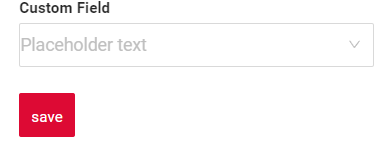
Placeholder allows you to provide a concise hint, guiding users on the expected value. This hint is displayed before any user input. It can be calculated based on business logic of application
How does it look?

not applicable
How to add?
Example
Add fields.setPlaceholder to corresponding FieldMetaBuilder.
    @Override
    public void buildRowDependentMeta(RowDependentFieldsMeta<MyExampleDTO> fields, InnerBcDescription bcDescription,
                                      Long id, Long parentId) {
        fields.setEnabled(MyExampleDTO_.customField);
        fields.setPlaceholder(MyExampleDTO_.customField, "Placeholder text");
    }
Color
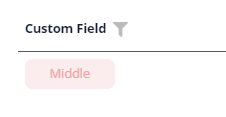
Color allows you to specify a field color. It can be calculated based on business logic of application
Calculated color
Constant color
How does it look?

not applicable
How to add?
Example
Step 1 Add custom field for color to corresponding DataResponseDTO. The field can contain a HEX color or be null.
@Getter
@Setter
@NoArgsConstructor
public class MyExampleDTO extends DataResponseDTO {

    @SearchParameter(name = "customField", provider = EnumValueProvider.class)
    private CustomFieldEnum customField;

    private String customFieldColor;

    public MyExampleDTO(MyEntity entity) {
        this.id = entity.getId().toString();
        this.customField = entity.getCustomField();
        this.customFieldColor = "#edaa";
    }

}
Step 2 Add "bgColorKey" : custom field for color to .widget.json.
Step 2 Add "bgColorKey" : custom field for color to .widget.json.
{
  "name": "MyExampleInfo",
  "title": "Info title",
  "type": "Info",
  "bc": "myExampleBc",
  "fields": [
    {
      "label": "Custom Field",
      "key": "customField",
      "type": "dictionary",
      "bgColorKey": "customFieldColor"
    }
  ],
  "options": {
    "layout": {
      "rows": [
        {
          "cols": [
            {
              "fieldKey": "customField",
              "span": 12
            }
          ]
        }
      ]
    }
  }
}
not applicable
Add "bgColor" : HEX color to .widget.json.
Add "bgColor" : HEX color to .widget.json.
not applicable
Readonly/Editable
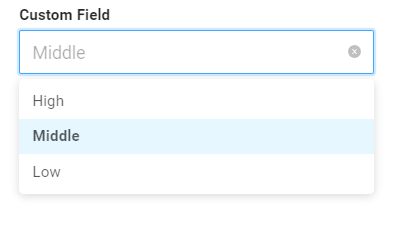
Readonly/Editable indicates whether the field can be edited or not. It can be calculated based on business logic of application
Editable
Live Sample ·
GitHub
Readonly
Live Sample ·
GitHub
How does it look?
not applicable
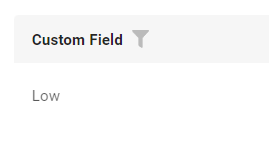

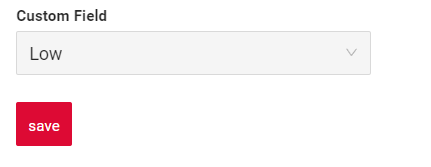
How to add?
Example
Step1 Add mapping DTO->entity to corresponding VersionAwareResponseService.
    @Override
    protected ActionResultDTO<MyExampleDTO> doUpdateEntity(MyEntity entity, MyExampleDTO data,
                                                             BusinessComponent bc) {
        if (data.isFieldChanged(MyExampleDTO_.customField)) {
            entity.setCustomField(data.getCustomField());
        }

        return new ActionResultDTO<>(entityToDto(bc, entity));
    }
Step2 Add fields.setEnabled to corresponding FieldMetaBuilder.
    @Override
    public void buildRowDependentMeta(RowDependentFieldsMeta<MyExampleDTO> fields, InnerBcDescription bcDescription,
                                      Long id, Long parentId) {
        fields.setEnabled(MyExampleDTO_.customField);
    }
Option 1 Enabled by default.
    @Override
    public void buildRowDependentMeta(RowDependentFieldsMeta<MyExampleDTO> fields, InnerBcDescription bcDescription,
                                      Long id, Long parentId) {

    }
Option 2 Not recommended. Property fields.setDisabled() overrides the enabled field if you use after property fields.setEnabled.
Works for List.
Works for Info.
Works for Form.
Filtering
Enum Live Sample · GitHub
Dictionary Live Sample · GitHub
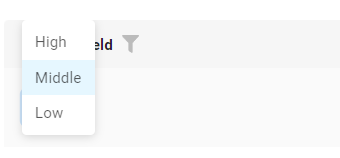
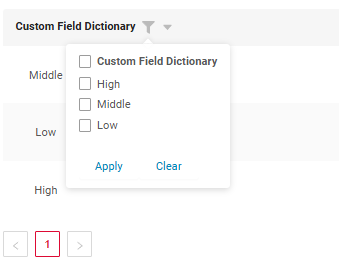
Filtering allows you to search data based on criteria. Search uses in operator.
The filter component displays a text search field and scrollbar based on the number of available filter values. (since release 2.0.13)
-
The search input and scrollbar appear only when the number of filterable values exceeds
7 items (Default count items - configurable via frontend constant). -
The Apply button shows a counter of selected items (e.g.,
Apply (5)). - If the selection count exceeds 7 items, it displays
Apply (N+)(e.g.,Apply (9+)).
How does it look?
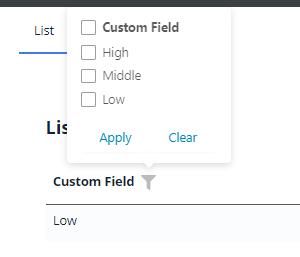
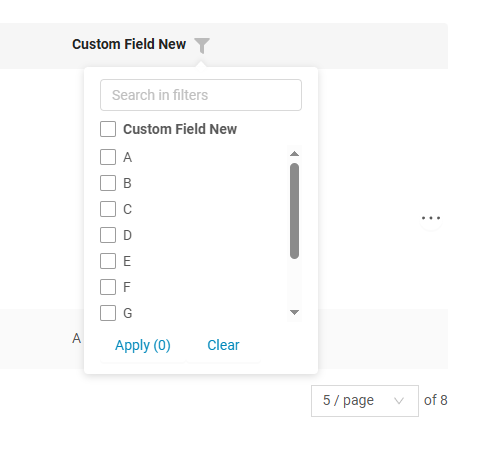
not applicable
not applicable
How to add?
Example
Step 1 Add @SearchParameter to corresponding DataResponseDTO. (Advanced customization SearchParameter)
@Getter
@Setter
@NoArgsConstructor
public class MyExampleDTO extends DataResponseDTO {

    @SearchParameter(name = "customField", provider = EnumValueProvider.class)
    private CustomFieldEnum customField;

    @SearchParameter(name = "customFieldNew", provider = EnumValueProvider.class)
    private CustomFieldNewEnum customFieldNew;

    @SearchParameter(name = "customFieldSecond", provider = EnumValueProvider.class)
    private CustomFieldSecondEnum customFieldSecond;

    public MyExampleDTO(MyEntity entity) {
        this.id = entity.getId().toString();
        this.customField = entity.getCustomField();
        this.customFieldNew = entity.getCustomFieldNew();
        this.customFieldSecond = entity.getCustomFieldSecond();
    }

}
Step 2 Add fields.enableFilter to corresponding FieldMetaBuilder.
Add fields.setEnumFilterValues to corresponding FieldMetaBuilder.
The front-end requires us to display all directory data within the method /row-meta tag filterValues.
    @Override
    public void buildIndependentMeta(FieldsMeta<MyExampleDTO> fields, InnerBcDescription bcDescription, Long parentId) {

        fields.setEnumFilterValues(fields, MyExampleDTO_.customFieldSecond, LOW, HIGH, MIDDLE);
        fields.enableFilter(MyExampleDTO_.customFieldSecond);
        if (Boolean.TRUE.equals(configuration.getForceActiveEnabled())) {
            fields.setForceActive(MyExampleDTO_.customField);
        }

        fields.setEnumFilterValues(fields, MyExampleDTO_.customField, CustomFieldEnum.values());
        fields.enableFilter(MyExampleDTO_.customField);
        fields.enableSort(MyExampleDTO_.customField);

        fields.setEnumFilterValues(fields, MyExampleDTO_.customFieldNew, CustomFieldNewEnum.values());
        fields.enableFilter(MyExampleDTO_.customFieldNew);
    }
How to sort values in a drop-down list or for filtering?
see Sorting
not applicable
not applicable
Step 1 Add @SearchParameter to corresponding DataResponseDTO. (Advanced customization SearchParameter)
@Getter
@Setter
@NoArgsConstructor
public class MyExampleDTO extends DataResponseDTO {

    @SearchParameter(name = "customField")
    private String customField;
    @SearchParameter(name = "customFieldDictionarySecond", provider = DictionaryValueProvider.class)
    private CustomDictionaryFiltrationSecond customFieldDictionarySecond;
    @SearchParameter(name = "customFieldDictionary", provider = DictionaryValueProvider.class)
    private CustomDictionaryFiltration customFieldDictionary;
    @SearchParameter(name = "customFieldNewDictionary", provider = DictionaryValueProvider.class)
    private CustomDictionaryNewFiltration customFieldNewDictionary;

    public MyExampleDTO(MyEntity entity) {
        this.id = entity.getId().toString();
        this.customField = entity.getCustomField();
        this.customFieldDictionary = entity.getCustomFieldDictionary();
        this.customFieldNewDictionary = entity.getCustomFieldNewDictionary();
        this.customFieldDictionarySecond = entity.getCustomFieldDictionarySecond();
    }
}
Step 2 Add fields.enableFilter to corresponding FieldMetaBuilder.
Add fields.setDictionaryFilterValues to corresponding FieldMetaBuilder.
The front-end requires us to display all directory data within the method /row-meta tag filterValues.
    @Override
    public void buildIndependentMeta(FieldsMeta<MyExampleDTO> fields, InnerBcDescription bcDescription, Long parentId) {
        fields.enableFilter(MyExampleDTO_.customFieldDictionarySecond);
        Collection<CustomDictionaryFiltrationSecond> variantFiltration = List.of(
                CustomDictionaryFiltrationSecond.LOW,
                CustomDictionaryFiltrationSecond.HIGH,
                CustomDictionaryFiltrationSecond.MIDDLE
        );

        fields.setDictionaryFilterValues(MyExampleDTO_.customFieldDictionarySecond, variantFiltration);

        fields.enableFilter(MyExampleDTO_.customFieldNewDictionary);
        fields.setDictionaryValues(MyExampleDTO_.customFieldNewDictionary);

        fields.setDictionaryFilterValues(MyExampleDTO_.customFieldDictionary);
        fields.enableFilter(MyExampleDTO_.customFieldDictionary);

    }
not applicable
not applicable
How to sort values in a drop-down list or for filtering?
see Sorting
Configuration Default count items
- Location:
\ui\src\constants\filter.ts -
Variables:
checkboxFilterMaxVisibleItems– Controls when scroll/search appear.checkboxFilterCounterLimit– Sets the maximum number before switching to+notation.
Drilldown
DrillDown allows you to navigate to another view by simply tapping on it. Target view and other drill-down parts can be calculated based on business logic of application
Also, it optionally allows you to filter data on target view before it will be opened see more DrillDown
How does it look?
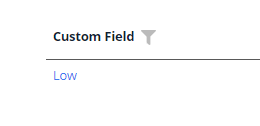

not applicable
How to add?
Example
Option 1
Step 1 Add fields.setDrilldown to corresponding FieldMetaBuilder.
    @Override
    public void buildRowDependentMeta(RowDependentFieldsMeta<MyExampleDTO> fields, InnerBcDescription bcDescription,
                                      Long id, Long parentId) {
        fields.setEnabled(MyExampleDTO_.customField);
        fields.setDrilldown(
                MyExampleDTO_.customField,
                DrillDownType.INNER,
                "/screen/myexample/view/myexampleform/" + PlatformMyExampleController.myExampleBc + "/" + id
        );
    }
Step 2 Add "drillDown": "true" to .widget.json.
{
  "name": "MyExampleList",
  "title": "List title",
  "type": "List",
  "bc": "myExampleBc",
  "fields": [
    {
      "title": "Custom Field",
      "key": "customField",
      "type": "dictionary",
      "drillDown": "true"
    }
  ]
}
Option 2
Add "drillDownKey" : custom field to .widget.json. See more Drilldown
Step 2 Add "drillDown": "true" to .widget.json.
{
  "name": "MyExampleInfo",
  "title": "Info title",
  "type": "Info",
  "bc": "myExampleBc",
  "fields": [
    {
      "label": "Custom Field",
      "key": "customField",
      "type": "dictionary",
      "drillDown": "true"
    }
  ],
  "options": {
    "layout": {
      "rows": [
        {
          "cols": [
            {
              "fieldKey": "customField",
              "span": 12
            }
          ]
        }
      ]
    }
  }
}
custom field to .widget.json. See more Drilldown
not applicable
Validation
Validation allows you to check any business rules for user-entered value. There are types of validation:
1) Exception:Displays a message to notify users about technical or business errors.
Business Exception:
Live Sample ·
GitHub
Runtime Exception:
Live Sample ·
GitHub
2) Confirm: Presents a dialog with an optional message, requiring user confirmation or cancellation before proceeding.
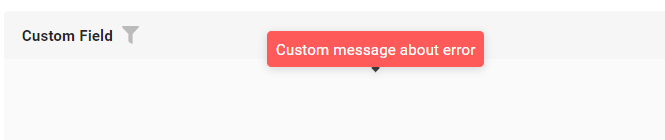
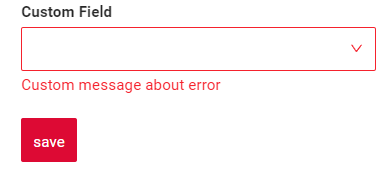
3) Field level validation: shows error next to all fields, that validation failed for
Option 1:
Live Sample ·
GitHub
Option 2:
Live Sample ·
GitHub
How does it look?
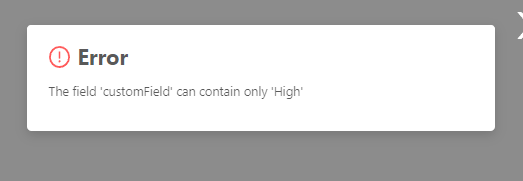
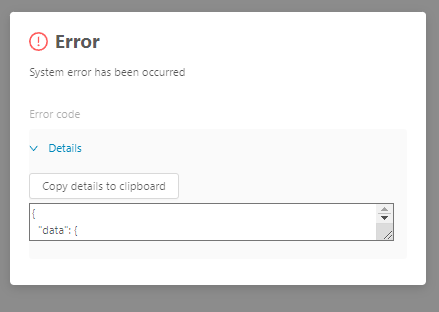
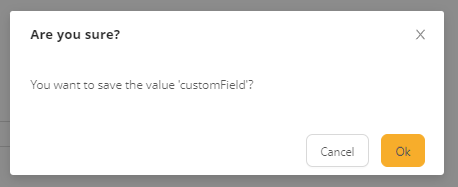
not applicable
How to add?
Example
BusinessException describes an error within a business process.
Add BusinessException to corresponding VersionAwareResponseService.
    @Override
    protected ActionResultDTO<MyExampleDTO> doUpdateEntity(MyEntity entity, MyExampleDTO data,
                                                             BusinessComponent bc) {
        if (data.isFieldChanged(MyExampleDTO_.customField)) {
            if (data.getCustomField() != null && !CustomFieldEnum.HIGH.getValue().equals(data.getCustomField().getValue())) {
                throw new BusinessException().addPopup(ONLY_HIGH);
            }
            entity.setCustomField(data.getCustomField());
        }
        return new ActionResultDTO<>(entityToDto(bc, entity));
    }
RuntimeException describes technical error within a business process.
Add RuntimeException to corresponding VersionAwareResponseService.
    @Override
    protected ActionResultDTO<MyExampleDTO> doUpdateEntity(MyEntity entity, MyExampleDTO data,
                                                             BusinessComponent bc) {
        if (data.isFieldChanged(MyExampleDTO_.customField)) {
            entity.setCustomField(data.getCustomField());
            try {
                //call custom function
                throw new Exception("Error");
            } catch (Exception e) {
                throw new RuntimeException("An unexpected error has occurred.");
            }
        }

        return new ActionResultDTO<>(entityToDto(bc, entity));
    }
Add PreAction.confirm to corresponding VersionAwareResponseService.
    @Override
    public Actions<MyExampleDTO> getActions() {
        return Actions.<MyExampleDTO>builder()
                .action(act -> act
                        .action("save", "save")
                        .withPreAction(PreAction.confirm(cf -> cf
                                .text("You want to save the value?")
                        )))
                .build();
    }
Add javax.validation to corresponding DataResponseDTO.
Use if:
Requires a simple fields check (javax validation) Add javax.validation to corresponding DataResponseDTO.
@Getter
@Setter
@NoArgsConstructor
public class MyExampleDTO extends DataResponseDTO {

    @SearchParameter(name = "customField", provider = EnumValueProvider.class)
    @NotNull(message = "Custom message about error")
    private CustomFieldEnum customField;

    public MyExampleDTO(MyEntity entity) {
        this.id = entity.getId().toString();
        this.customField = entity.getCustomField();
    }

}
Create сustom service for business logic check.
Use if:
Business logic check required for fields
Step 1 Create сustom method for check.
    private void validateFields(BusinessComponent bc, MyExampleDTO dto) {
        BusinessError.Entity entity = new BusinessError.Entity(bc);
        if (!dto.getCustomField().getValue().equals(CustomFieldEnum.HIGH.getValue())) {
            entity.addField(MyExampleDTO_.customField.getName(), "Custom message about error");
        }
        if (!dto.getCustomFieldAdditional().getValue().equals(CustomFieldEnum.HIGH.getValue())) {
            entity.addField(MyExampleDTO_.customFieldAdditional.getName(), "Custom message about error");
        }
        if (!entity.getFields().isEmpty()) {
            throw new BusinessException().setEntity(entity);
        }
    }
Step 2 Add сustom method for check to corresponding VersionAwareResponseService.
Sorting
Enum
Live Sample ·
GitHub
Dictionary
Live Sample ·
GitHub
Sorting allows you to sort data in ascending or descending order.
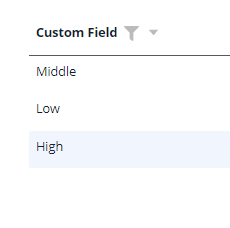
Sorting data: The sorting of values is based on those stored in the database rather than those displayed in the interface.
Info
Sorting won't function until the page is refreshed after adding or updating records.
Sorting Drop-down list or List values for filter:
Can also arrange the values in the drop-down list or list values for filter in the desired order.
Enum possible to arrange list values for filter different from sorting for drop-down values.
How does it look?
not applicable
not applicable
not applicable
not applicable
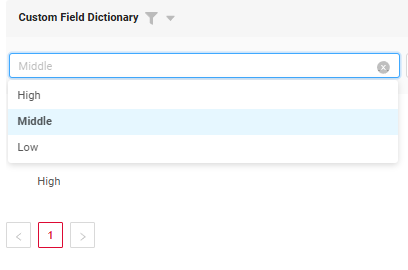
not applicable

How to add?
Example
see more Sorting
The sorting of values is based on those stored in the database rather than those displayed in the interface, using lexicographic sorting.
Step 1 Add fields.enableSort to corresponding FieldMetaBuilder.
    @Override
    public void buildIndependentMeta(FieldsMeta<MyExampleDTO> fields, InnerBcDescription bcDescription, Long parentId) {
        fields.setEnumFilterValues(fields, MyExampleDTO_.customField, CustomFieldEnum.values());
        fields.enableFilter(MyExampleDTO_.customField);
        fields.enableSort(MyExampleDTO_.customField);

        fields.setEnumFilterValues(fields, MyExampleDTO_.customFieldDictionaryCustomOrder, CustomFieldDictionaryCustomOrderEnum.LOW, CustomFieldDictionaryCustomOrderEnum.HIGH, CustomFieldDictionaryCustomOrderEnum.MIDDLE);
        fields.enableFilter(MyExampleDTO_.customFieldDictionaryCustomOrder);
        fields.enableSort(MyExampleDTO_.customFieldDictionaryCustomOrder);

        if (configuration.getForceActiveEnabled()) {
            fields.setForceActive(MyExampleDTO_.customField);
        }
    }
The sorting of drop-down values is determined by the order specified by the developer in the method.
Step 1 Add fields.setEnumValues to corresponding FieldMetaBuilder. Ensure the values are passed in the correct order to achieve the desired sorting.
    @Override
    public void buildRowDependentMeta(RowDependentFieldsMeta<MyExampleDTO> fields, InnerBcDescription bcDescription,
                                      Long id, Long parentId) {
        fields.setEnabled(MyExampleDTO_.customField);
        fields.setEnumValues(MyExampleDTO_.customField, CustomFieldEnum.values());

        fields.setEnumValues(MyExampleDTO_.customFieldDictionaryCustomOrder, CustomFieldDictionaryCustomOrderEnum.MIDDLE, CustomFieldDictionaryCustomOrderEnum.LOW, CustomFieldDictionaryCustomOrderEnum.HIGH);
        fields.setEnabled(MyExampleDTO_.customFieldDictionaryCustomOrder);
    }
The sorting of drop-down values is determined by the order specified by the developer in the method.
Step 1 Add fields.setEnumFilterValues to corresponding FieldMetaBuilder. Ensure the values are passed in the correct order to achieve the desired sorting.
    @Override
    public void buildIndependentMeta(FieldsMeta<MyExampleDTO> fields, InnerBcDescription bcDescription, Long parentId) {
        fields.setEnumFilterValues(fields, MyExampleDTO_.customField, CustomFieldEnum.values());
        fields.enableFilter(MyExampleDTO_.customField);
        fields.enableSort(MyExampleDTO_.customField);

        fields.setEnumFilterValues(fields, MyExampleDTO_.customFieldDictionaryCustomOrder, CustomFieldDictionaryCustomOrderEnum.LOW, CustomFieldDictionaryCustomOrderEnum.HIGH, CustomFieldDictionaryCustomOrderEnum.MIDDLE);
        fields.enableFilter(MyExampleDTO_.customFieldDictionaryCustomOrder);
        fields.enableSort(MyExampleDTO_.customFieldDictionaryCustomOrder);

        if (configuration.getForceActiveEnabled()) {
            fields.setForceActive(MyExampleDTO_.customField);
        }
    }
see more Sorting
The sorting of values is based on those stored in the database rather than those displayed in the interface.
Step 1 Add fields.enableSort to corresponding FieldMetaBuilder.
    @Override
    public void buildIndependentMeta(FieldsMeta<MyExampleDTO> fields, InnerBcDescription bcDescription, Long parentId) {
        fields.enableSort(MyExampleDTO_.customFieldDictionary);
        fields.enableSort(MyExampleDTO_.customFieldDictionaryExample);
        fields.setDictionaryFilterValues(MyExampleDTO_.customFieldDictionary);
        fields.setDictionaryFilterValues(MyExampleDTO_.customFieldDictionaryExample);

        fields.enableFilter(MyExampleDTO_.customFieldDictionary);
        fields.enableFilter(MyExampleDTO_.customFieldDictionaryExample);

    }
If you use DictionaryProvider. getAll(Class), that delegates to org. cxbox. api. data. dictionary. DictionaryCache, then drop-down values are sorted by display_order, then by key (display_order can be null)
@Configuration
public class DictionaryConfig {

    @Bean
    public DictionaryProvider dictionaryProvider() {
        return new DictionaryProvider() {

            @Override
            public <T extends Dictionary> T lookupName(@NonNull Class<T> type, @NonNull DictionaryValue value) {
                var dictTmp = Dictionary.of(type, "");
                var lov = DictionaryCache.dictionary().lookupName(value.getValue(), dictTmp.getDictionaryType());
                return Dictionary.of(type, lov.getKey());
            }

            @Override
            public <T extends Dictionary> SimpleDictionary lookupValue(@NonNull T dictionary) {
                return DictionaryCache.dictionary().get(dictionary.getDictionaryType(), dictionary.key());
            }

            @Override
            public <T extends Dictionary> Collection<T> getAll(@NonNull Class<T> dictionaryType) {

                if (dictionaryType == CustomDictionarySortingExample.class) {
                    return DictionaryCache.dictionary().getAll(Dictionary.of(dictionaryType, "").getDictionaryType())
                            .stream()
                            .sorted(Comparator.comparing(SimpleDictionary::getKey))
                            .map(e -> Dictionary.of(dictionaryType, e.getKey()))
                            .toList();
                }

                return DictionaryCache.dictionary().getAll(Dictionary.of(dictionaryType, "").getDictionaryType())
                        .stream()
                        .map(e -> Dictionary.of(dictionaryType, e.getKey()))
                        .toList();
            }
        };
    }

}
not applicable
not applicable
The sorting of drop-down values is determined by the order specified by the developer in the method.
Step 1 Add fields.setEnumValues to corresponding FieldMetaBuilder. Ensure the values are passed in the correct order to achieve the desired sorting.
    @Override
    public void buildRowDependentMeta(RowDependentFieldsMeta<MyExampleDTO> fields, InnerBcDescription bcDescription,
                                      Long id, Long parentId) {
        fields.setEnabled(MyExampleDTO_.customField);
        fields.setEnumValues(MyExampleDTO_.customField, CustomFieldEnum.values());

        fields.setEnumValues(MyExampleDTO_.customFieldDictionaryCustomOrder, CustomFieldDictionaryCustomOrderEnum.MIDDLE, CustomFieldDictionaryCustomOrderEnum.LOW, CustomFieldDictionaryCustomOrderEnum.HIGH);
        fields.setEnabled(MyExampleDTO_.customFieldDictionaryCustomOrder);
    }
not applicable
not applicable
If you use DictionaryProvider. getAll(Class), that delegates to org. cxbox. api. data. dictionary. DictionaryCache, then drop-down values are sorted by display_order, then by key (display_order can be null)
@Configuration
public class DictionaryConfig {

    @Bean
    public DictionaryProvider dictionaryProvider() {
        return new DictionaryProvider() {

            @Override
            public <T extends Dictionary> T lookupName(@NonNull Class<T> type, @NonNull DictionaryValue value) {
                var dictTmp = Dictionary.of(type, "");
                var lov = DictionaryCache.dictionary().lookupName(value.getValue(), dictTmp.getDictionaryType());
                return Dictionary.of(type, lov.getKey());
            }

            @Override
            public <T extends Dictionary> SimpleDictionary lookupValue(@NonNull T dictionary) {
                return DictionaryCache.dictionary().get(dictionary.getDictionaryType(), dictionary.key());
            }

            @Override
            public <T extends Dictionary> Collection<T> getAll(@NonNull Class<T> dictionaryType) {

                if (dictionaryType == CustomDictionarySortingExample.class) {
                    return DictionaryCache.dictionary().getAll(Dictionary.of(dictionaryType, "").getDictionaryType())
                            .stream()
                            .sorted(Comparator.comparing(SimpleDictionary::getKey))
                            .map(e -> Dictionary.of(dictionaryType, e.getKey()))
                            .toList();
                }

                return DictionaryCache.dictionary().getAll(Dictionary.of(dictionaryType, "").getDictionaryType())
                        .stream()
                        .map(e -> Dictionary.of(dictionaryType, e.getKey()))
                        .toList();
            }
        };
    }

}
not applicable
Required
Required allows you to denote, that this field must have a value provided.
How does it look?

not applicable
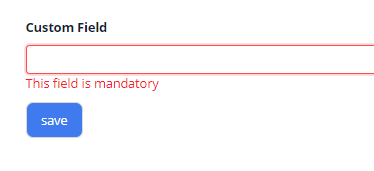
How to add?
Example
Add fields.setRequired to corresponding FieldMetaBuilder.
    @Override
    public void buildRowDependentMeta(RowDependentFieldsMeta<MyExampleDTO> fields, InnerBcDescription bcDescription,
                                      Long id, Long parentId) {
        fields.setEnabled(MyExampleDTO_.customField);
        fields.setRequired(MyExampleDTO_.customField);
    }
Additional properties
Icon
(since release 2.0.8)
Icons are small graphic symbols used within a user interface to visually represent certain actions, fields, or data types, making the interface more intuitive and easier to navigate. They serve as visual cues to help users quickly identify the purpose of a field without needing to read a title.
Basic
Tips
We recommend avoiding long values for value fields, as filtering sends a string with vallue to the backend, which may be subject to length limitations.
There are two display types icons:
There are two display modes:
Default Mode(icon and text)Icon-Only Mode(only icon)
Modes
Default Mode
Both icon and text are always shown.
Applies to:
- Drop-down directory
- Edit mode/Creation
- Filtering
How does it look?
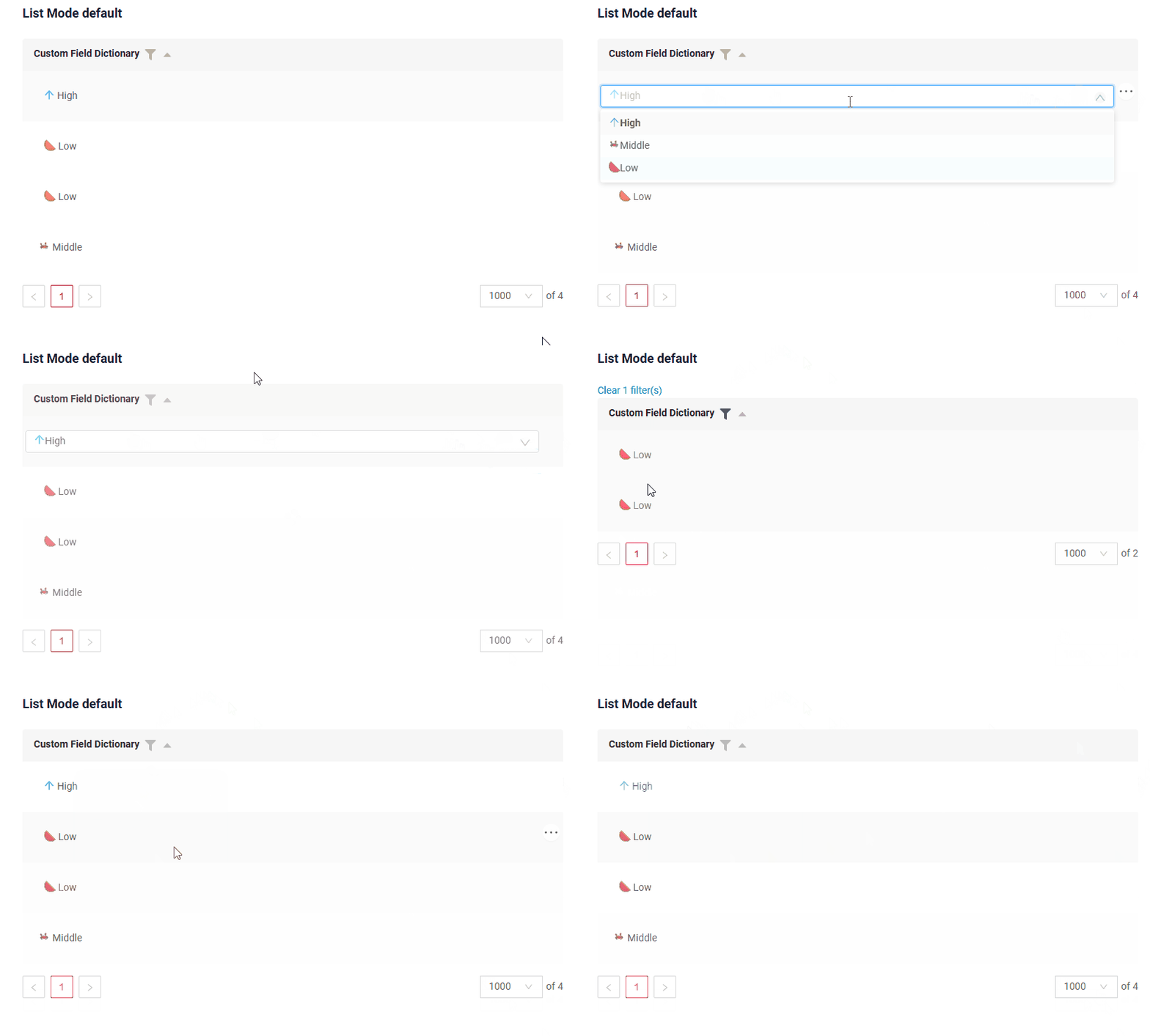
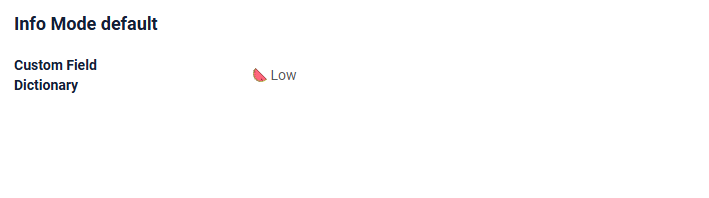
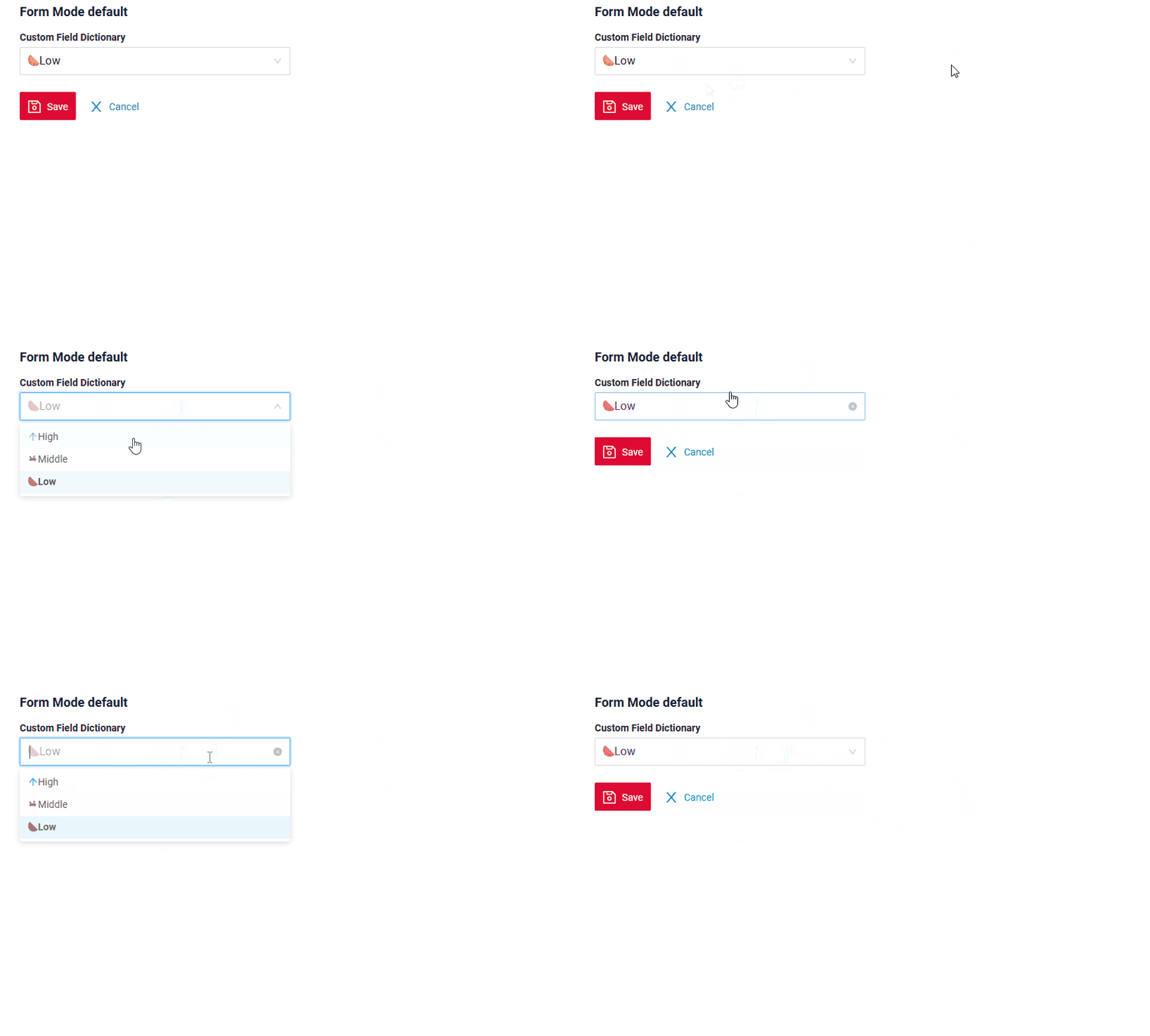
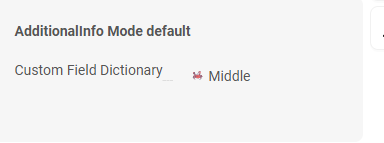
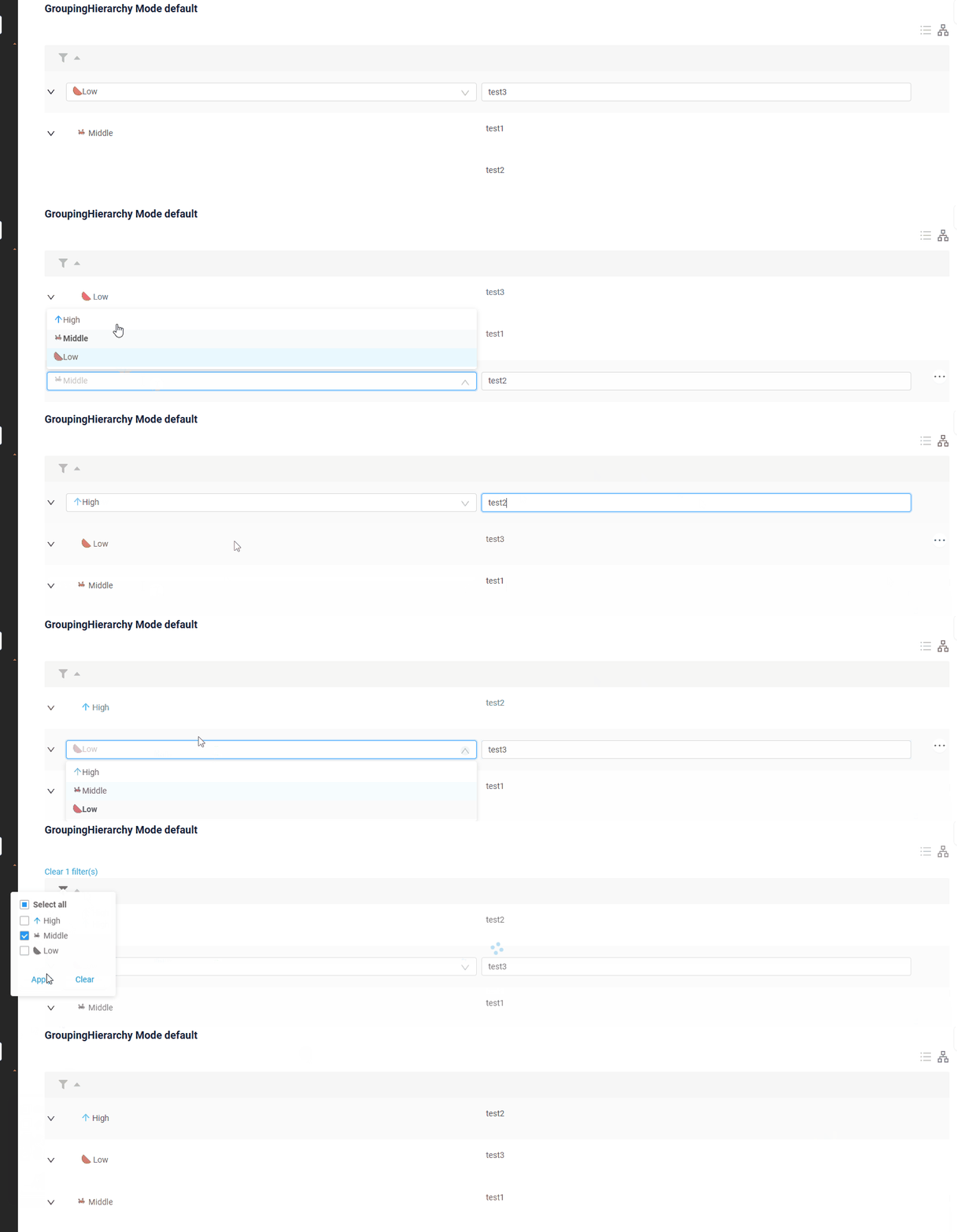
How to add?
Example
The frontend display mechanism for icons works as follows:
Icon Value Matching: The frontend needs to have all occurrences of the icon values within a comprehensive tag collection (allValues).
Icon Retrieval: It then takes the specified value from values(see more how_to_add)/filterValues(see more how_to_add and searches for a matching icon value within allValues. This process ensures that icons are displayed based on the specified icon values.
Step 1 Add fields.setEnumIcons to buildIndependentMeta to corresponding FieldMetaBuilder.
    @Override
    public void buildIndependentMeta(FieldsMeta<MyExampleDTO> fields, InnerBcDescription bcDescription, Long parentId) {
        fields.enableFilter(MyExampleDTO_.customFieldMultivalueModeIcon);
        fields.enableFilter(MyExampleDTO_.customFieldMultivalue);
        fields.enableFilter(MyExampleDTO_.customFieldDictionaryInlinePickList);
        fields.enableFilter(MyExampleDTO_.customFieldPickList);
        fields.enableFilter(MyExampleDTO_.customFieldDictionary);
        fields.enableSort(MyExampleDTO_.customFieldDictionary);

        fields.setEnumFilterValues(fields, MyExampleDTO_.customFieldPickList, CustomFieldDictionaryEnum.values());
        fields.setEnumFilterValues(fields, MyExampleDTO_.customFieldDictionary, CustomFieldDictionaryEnum.values());

        fields.setEnumIcons(MyExampleDTO_.customFieldDictionary, CustomFieldDictionaryEnum.iconMap());
        fields.setEnumValues(MyExampleDTO_.customFieldDictionary, CustomFieldDictionaryEnum.values());
    }
Step 2 (optional)
Missing mod tag = "mode": "default
Add "mode": "default" to corresponding widget.json.
Step 1 Add fields.setDictionaryValues to corresponding FieldMetaBuilder.
    @Override
    public void buildIndependentMeta(FieldsMeta<MyExampleDTO> fields, InnerBcDescription bcDescription, Long parentId) {
        fields.setDictionaryFilterValues(MyExampleDTO_.customFieldDictionary);
        fields.setDictionaryIcons(MyExampleDTO_.customFieldDictionary, CustomDictionary.icons);
    }
Step 2 (optional)
Missing mod tag = "mode": "default
Add "mode": "default" to corresponding widget.json.
Step 1 Add fields.setDictionaryTypeWithAllValues to corresponding FieldMetaBuilder.
    @Override
    public void buildIndependentMeta(FieldsMeta<MyExampleDTO> fields, InnerBcDescription bcDescription, Long parentId) {
        fields.enableFilter(MyExampleDTO_.customFieldDictionary);
        fields.enableSort(MyExampleDTO_.customFieldDictionary);
        fields.setDictionaryTypeWithAllValues(MyExampleDTO_.customFieldDictionary, REGIONS);
        Map<LOV, Icon> valueIconMap = Map.of(
                MOSCOW, ARROW_UP,
                SAINT_PETERBURG, DOWN,
                SYKTYVKAR, ARROW_UP_BLUE,
                KOSTROMA, WATERMELON);
        fields.setAllValuesWithIcons(MyExampleDTO_.customFieldDictionary, REGIONS, valueIconMap);
        fields.setAllFilterValuesByLovType(MyExampleDTO_.customFieldDictionary, REGIONS);
    }
Step 2 Missing mod tag = "mode": "default
Add "mode": "default" to corresponding widget.json.
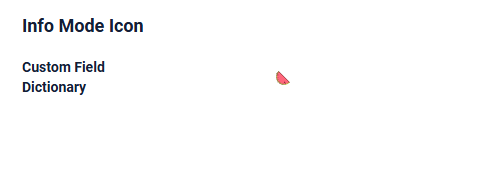
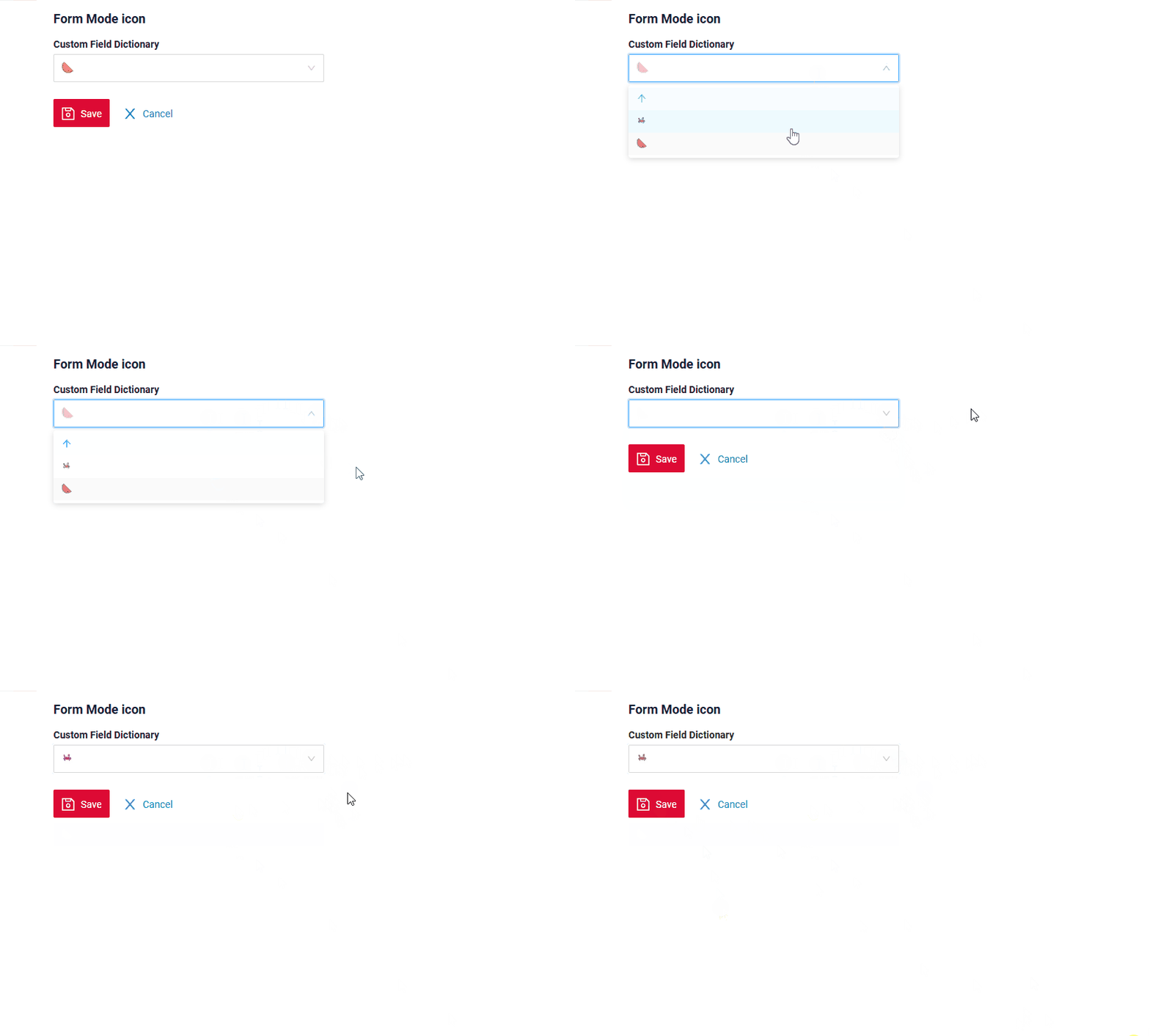
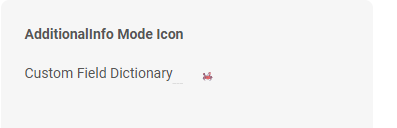
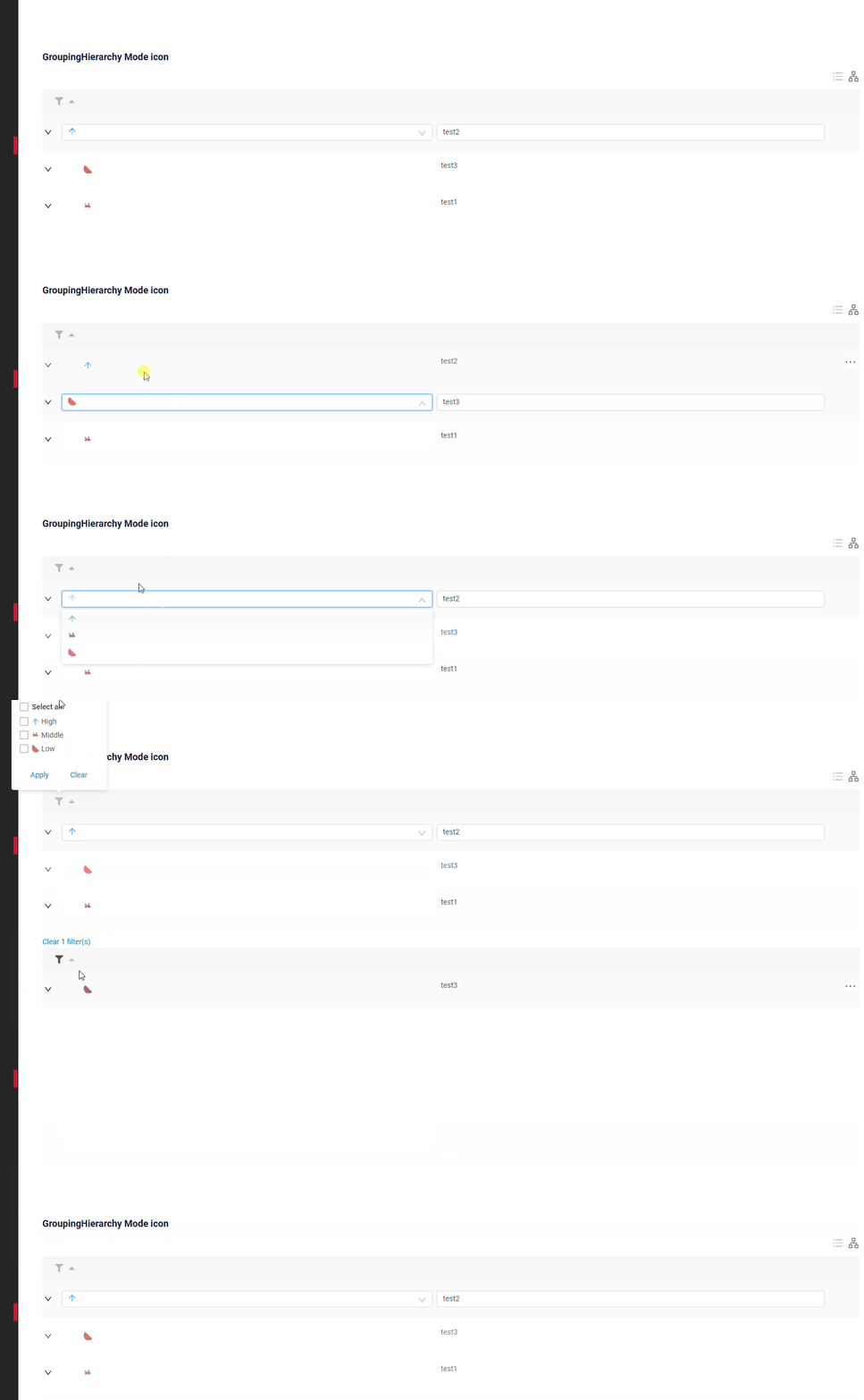
Icon Mode
Only the icon is displayed.
When hovering over the icon, a tooltip appears displaying text that is retrieved from the value.
Applies to:
- Drop-down directory
- Edit mode/Creation
- For filtering, icon and text are always shown.
How does it look?
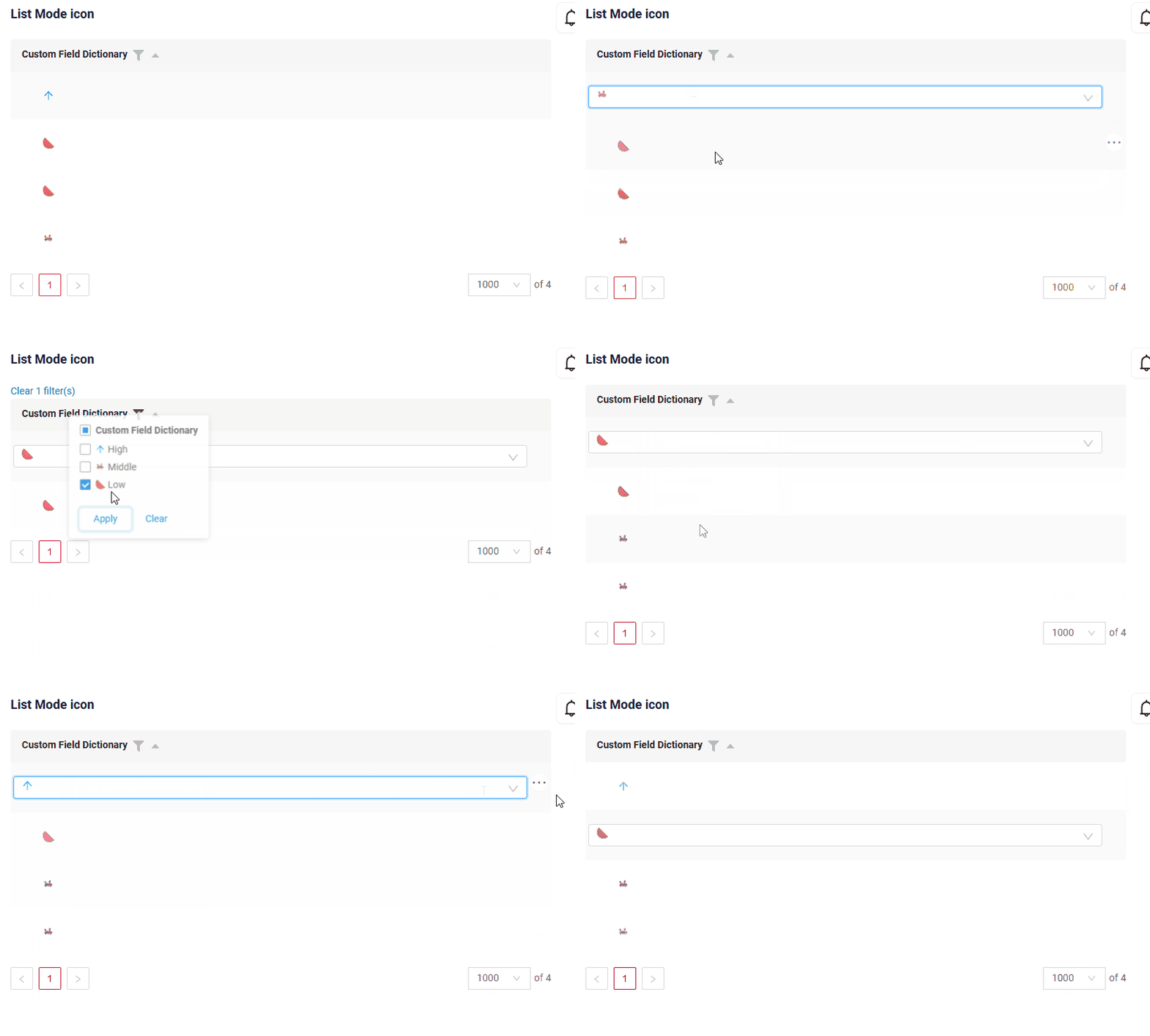
How to add?
Example
The frontend display mechanism for icons works as follows:
allValues tag is filled with values from the icon-to-value mapping directory.
Next, we retrieve the value from either values (see how_to_add) or filterValues (see how_to_add)
and then search for the matching icon in allValues.
Step 1 Add fields.setEnumIcons to corresponding FieldMetaBuilder.
    @Override
    public void buildIndependentMeta(FieldsMeta<MyExampleDTO> fields, InnerBcDescription bcDescription, Long parentId) {
        fields.enableFilter(MyExampleDTO_.customFieldMultivalueModeIcon);
        fields.enableFilter(MyExampleDTO_.customFieldMultivalue);
        fields.enableFilter(MyExampleDTO_.customFieldDictionaryInlinePickList);
        fields.enableFilter(MyExampleDTO_.customFieldPickList);
        fields.enableFilter(MyExampleDTO_.customFieldDictionary);
        fields.enableSort(MyExampleDTO_.customFieldDictionary);

        fields.setEnumFilterValues(fields, MyExampleDTO_.customFieldPickList, CustomFieldDictionaryEnum.values());
        fields.setEnumFilterValues(fields, MyExampleDTO_.customFieldDictionary, CustomFieldDictionaryEnum.values());

        fields.setEnumIcons(MyExampleDTO_.customFieldDictionary, CustomFieldDictionaryEnum.iconMap());
        fields.setEnumValues(MyExampleDTO_.customFieldDictionary, CustomFieldDictionaryEnum.values());
    }
Step 2 Add "mode": "icon" to corresponding widget.json.
Step 1 Add fields.setDictionaryIcons to corresponding FieldMetaBuilder.
    @Override
    public void buildIndependentMeta(FieldsMeta<MyExampleDTO> fields, InnerBcDescription bcDescription, Long parentId) {
        fields.setDictionaryFilterValues(MyExampleDTO_.customFieldDictionary);
        fields.setDictionaryIcons(MyExampleDTO_.customFieldDictionary, CustomDictionary.icons);
    }
Step 2 Add "mode": "icon" to corresponding widget.json.
Types icons
The workflow logic is to first search for the icon name in the custom icons folder. If the icon is found, it will be used from there; if not, the search will continue in the standard Ant icons folder.
Icon selection logic:
- Search by icon name in the custom icons folder.
- If found, use the custom icon.
- If not found, look in the standard Ant icons folder and use the icon from there.
Standard icons
Cxbox-ui already includes this icon library.
Ant Design icons You can customize the color of the standard icon using a hex color code.
How does it look?


How to add?
Example
Simply copy the icon name and pass it to the method—that's all you need.
For example, add
Add standart icon to corresponding Icon. ARROW_UP("arrow-up")
Step 1 Add standart icon to corresponding Enum with icons.
ARROW_UP("arrow-up")
Add standart icon and hex color code to corresponding Icon.
ARROW_UP_BLUE("arrow-up #0cbfe9")
Step 1 Add standart icon and hex color code to corresponding Enum with icons.
ARROW_UP_BLUE("arrow-up #0cbfe9")
Step 1 Add standart icon and hex color code to corresponding Enum with icons.
ARROW_UP_BLUE("arrow-up #0cbfe9")
Custom icons
Custom icons can be uploaded. Icons should be uploaded in SVG format.
How does it look?

How to add?
Example
Step 1 Add icon (watermelon.svg) in folder ui/src/assets/icons/dictionaryCustomIcons
Step 2 Create a link to the icon file by adding a reference to ui/src/assets/icons/dictionaryCustomIcons/index.ts
Step 3
Add custom icon to corresponding Icon.
WATERMELON("watermelon")
Administration dictionary
(since release 2.0.9)
cxbox/core 4.0.0-M12
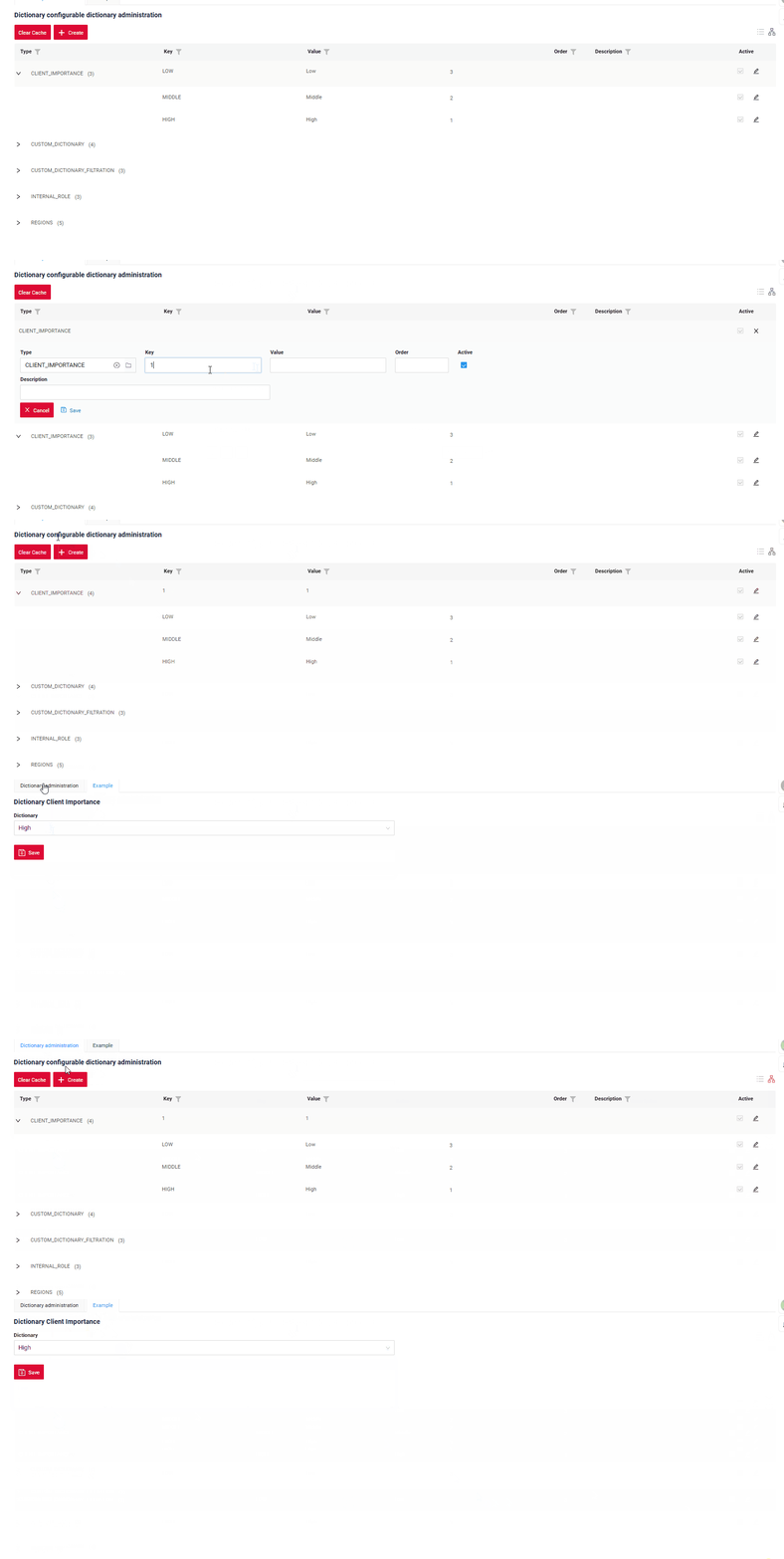
This screen allows you to edit and create dictionaries .
To apply the changes, click the "Clear Cache" button on the administration screen and refresh the page on the user screen to re-request the data.
How does it look?
How to add?
Example
-
Step 1. Check for the presence and relevance of the files from the demo project in the
conf/cxbox/customization/dictionaryfolder. -
Step 2. Check for the presence and relevance of the files from the demo project in the
/resources/meta/core/dictionaryfolder.
Release
To ensure that user-made changes are not lost during the release process, follow these steps:
- Button export: Retrieve the format file containing the current reference books from the environment (stand) where the release will be deployed.
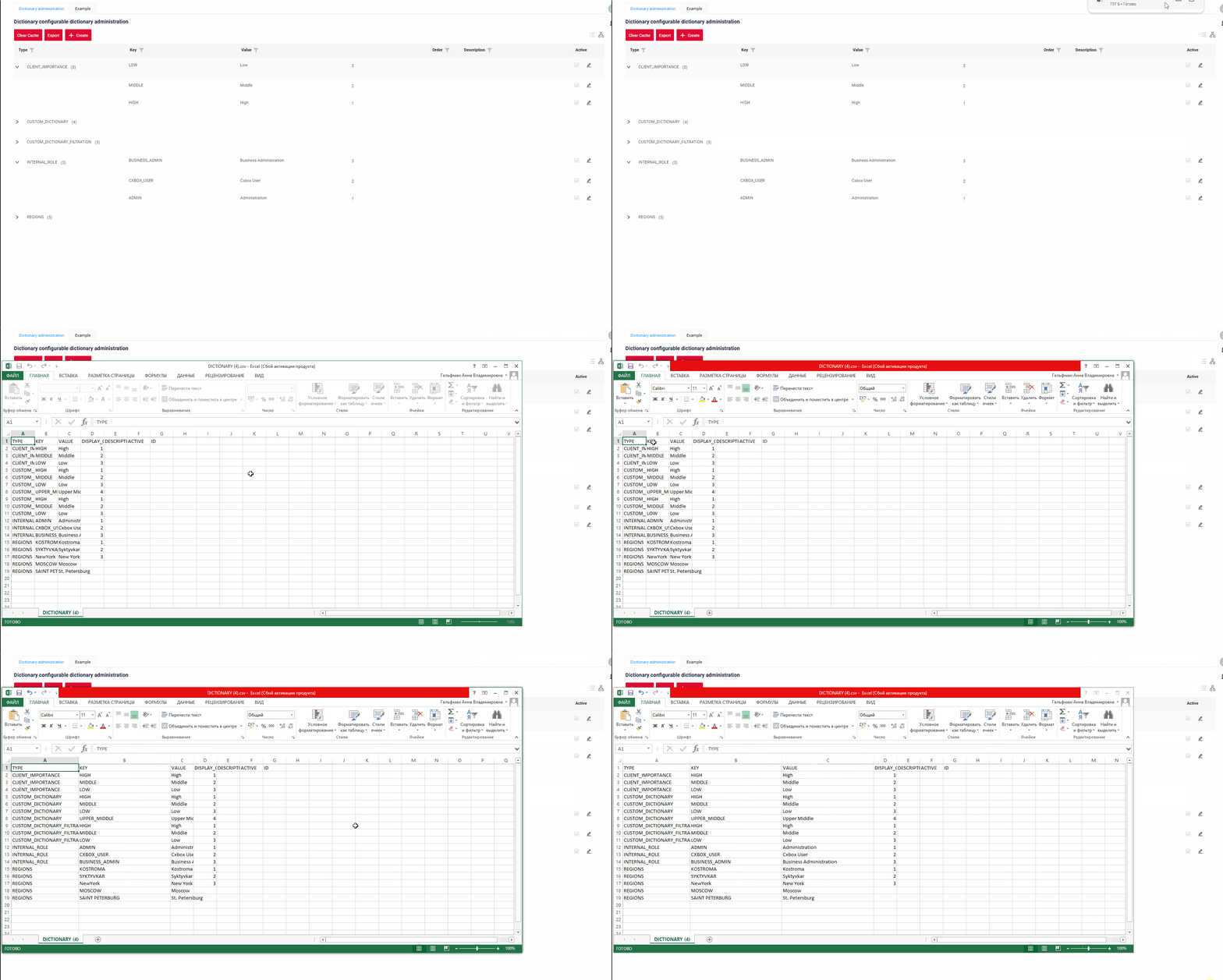
-
Match the Files: Compare the downloaded reference file with the release file to ensure consistency and identify any discrepancies. This will help preserve user changes.
-
Proceed with Release: After verifying that the files align correctly, continue with the deployment process, ensuring that user changes are retained in the updated system.