CardCarouselList
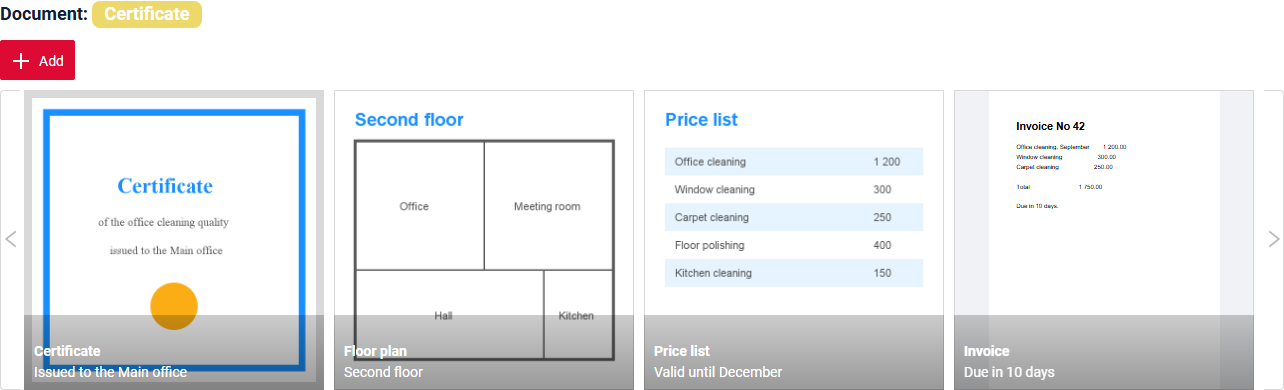
CardCarouselList widget shows records as file cards in one horizontal strip. Each card shows a preview of the record file, a title, a description and a status.
The user scrolls the strip with arrows, selects a card with a click and opens, edits and deletes files right on the cards.
CardList and CardCarouselList
CardList and CardCarouselList show the same cards and are set up the same way. Both load one page of records at a time: 5 by default, set by the page limit.
- CardList: any number of records. The page buttons below the cards open the next pages.
- CardCarouselList: only the records of the first page. The arrows scroll the cards of this page, there is no next page. To show all records, set the page limit to their number, up to 20: the whole page is loaded at once.
Basics
How does it look?
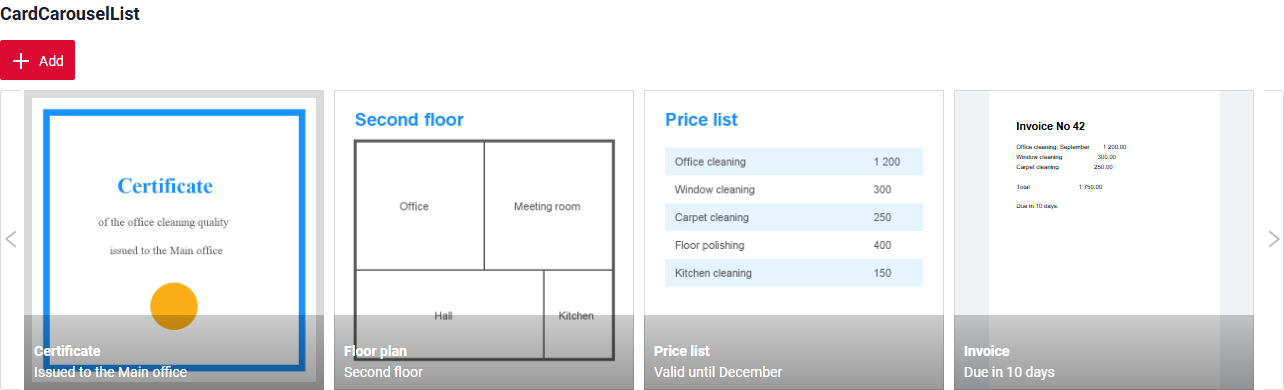
The widget needs one field of type fileUpload. A card shows this file. Without other settings the card title is the file name. In the sample the title and the description come from fields, see Card options.
- One card is one record of the business component.
- Arrows scroll the strip by the number of visible cards. After the last card the strip starts again from the first one.
- A click on a card makes it the current record.
How to add?
Example
Step1 Create file .widget.json with type = "CardCarouselList".
Add a field with type fileUpload and fields for the title and the description. Set them in options.card. see more Fields
Step2 Add widget to corresponding **.view.json **.
Main visual parts
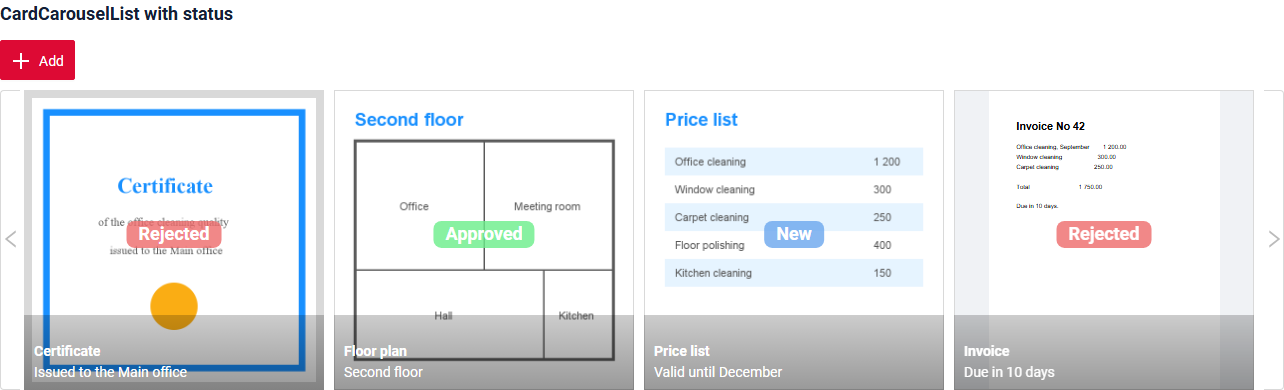
preview- the file of the fileUpload field. see Previewstatus- the value of the first dictionary field, in the middle of the card. see Statustitle- the file name or a field fromtitleFieldKey. see Card optionsdescription- a field fromdescriptionFieldKey, under the title. see Card optionsactions- record actions as icons. They are shown when the mouse is over the card. see Actionsarrows- scroll the strip to the previous or the next cards.read widget- the file of the selected card, large, above the strip. see Read widget
Title
Title Basic
Title for widget (optional)
There are types of:
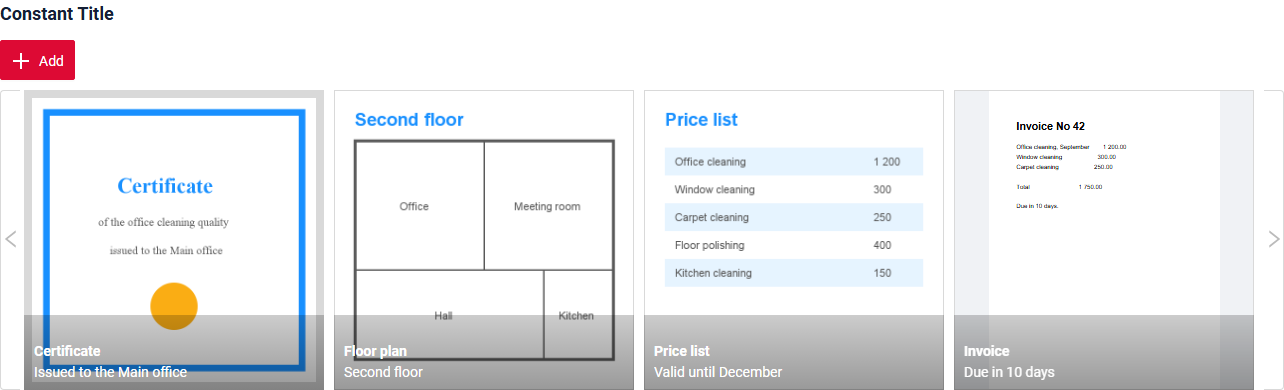
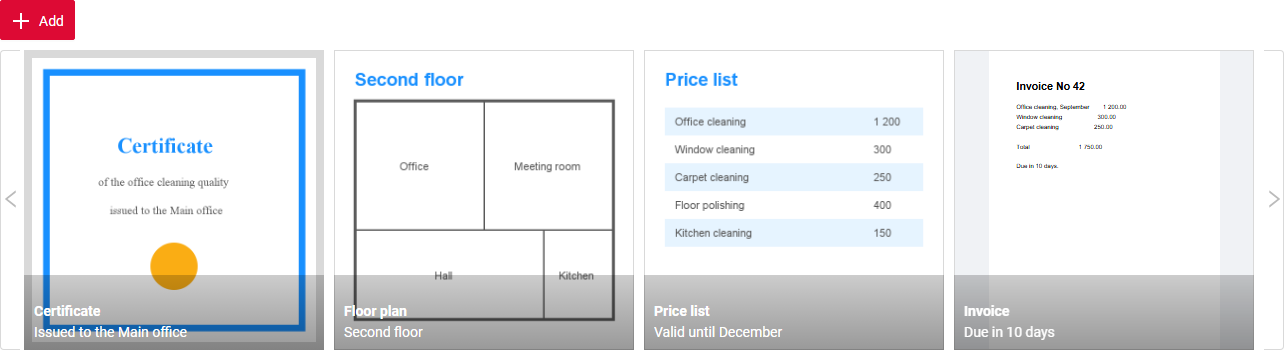
constant title: shows constant text.constant title empty: if you want to visually connect widgets by them to be placed one under another
How does it look?
How to add?
Example
Title Color
Title Color allows you to specify a color for a title. It can be constant or calculated.
The title shows field values of the current record, that is of the selected card.
Constant color
Constant color is a fixed color that doesn't change. It remains the same regardless of any factors in the application.
Calculated color
Calculated color can be used to change a title color dynamically. It changes depending on business logic or data in the application.
Info
Title colorization is applicable to the following fields: date, dateTime, dateTimeWithSeconds, number, money, percent, time, input, text, dictionary, radio, checkbox, pickList, inlinePickList, multivalue, multivalueHover.
How does it look?
How to add?
Example
Step 1 Add custom field for color to corresponding DataResponseDTO. The field can contain a HEX color or be null.
Step 2 Add "bgColorKey" : custom field for color and to .widget.json.
Add in title field with ${customField}
Add "bgColor" : HEX color to .widget.json.
Add in title field with ${customField}
Business component
This specifies the business component (BC) to which this form belongs. A business component represents a specific part of a system that handles a particular business logic or data.
see more Business component
Show condition
no show condition - recommended: widget always visible
-
show condition by current entity: not recommended. The condition is calculated by the selected card, so the widget can hide itself when the user selects another card. -
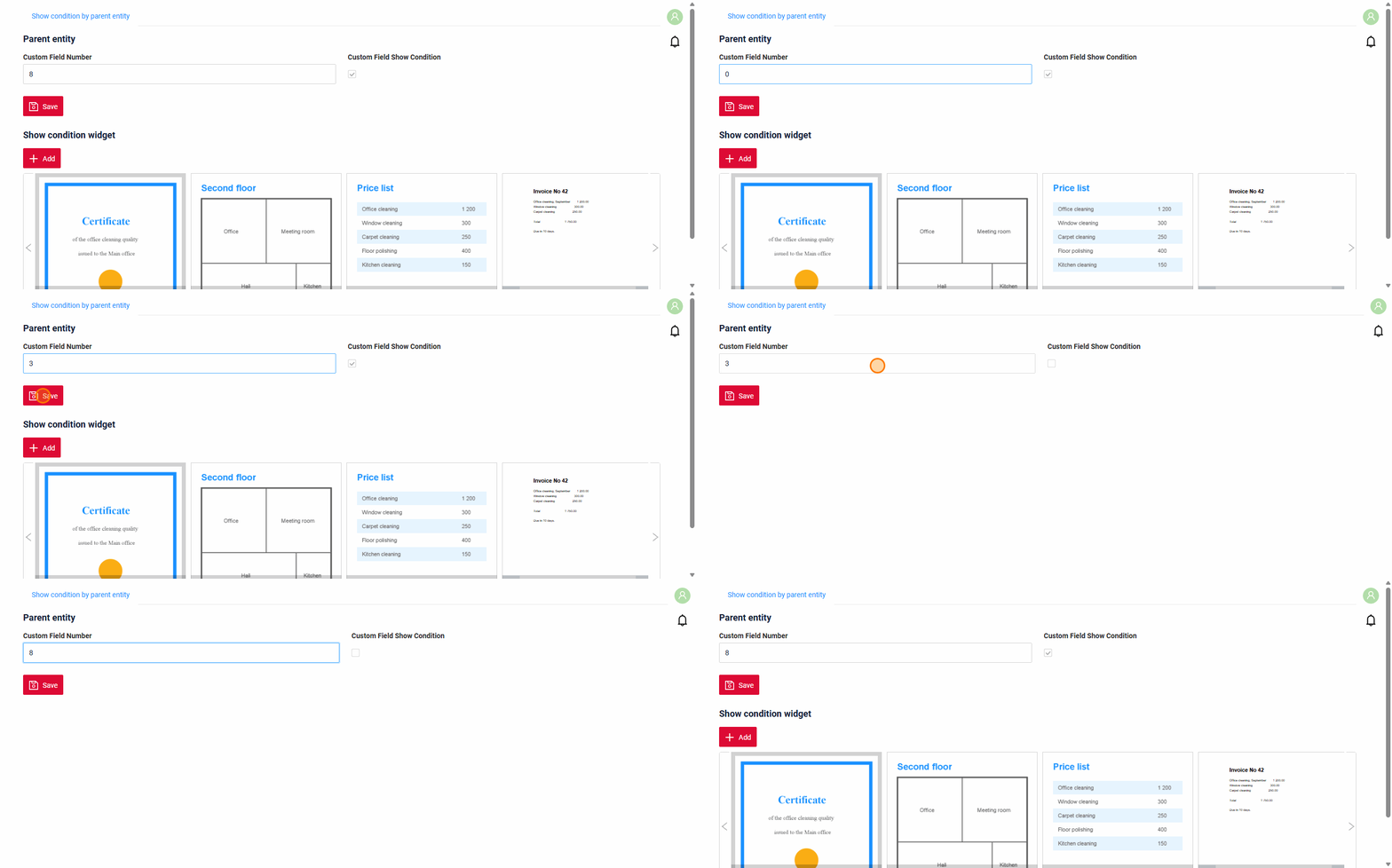
show condition by parent entity: condition can include boolean expression depending on parent entity. Parent field updates will trigger condition recalculation only on save or if field is force active shown on same view
Tips
It is recommended not to use Show condition when possible, because wide usage of this feature makes application hard to support.
How does it look?
How to add?
Example
see Basic
Step1 Add showCondition to .widget.json. see more showCondition
Fields
Fields Configuration. The fields array defines the fields used by the cards.
{
    "title": "Document",
    "key": "document",
    "type": "fileUpload",
    "fileIdKey": "documentId",
    "preview": {
        "enabled": true,
        "mode": "inline"
    }
}
- "title"
Description: Field Title.
Type: String(optional).
-
"key"
Description: Name field to corresponding DataResponseDTO.
Type: String(required).
-
"type"
Description: Field types
Type: String(required).
The widget uses only these fields:
| Field | Where it is shown |
|---|---|
| fileUpload | preview of the card; the first fileUpload field or the field from valueFieldKey |
any field from titleFieldKey |
title of the card |
any field from descriptionFieldKey |
description of the card |
| the first dictionary field | status of the card |
Other fields are not shown on the card. They can be used in the create and edit form.
How to add?
Options layout
not applicable
Actions
Actions show available actions as separate buttons see more Actions.
Record actions are shown as icons on the card. The widget actions (for example Add) are shown above the strip.
Info
All record actions of the service are shown on the card, Save and Cancel too.
Leave only the needed ones with actionGroups: "actionGroups": {"include": ["create", "delete"]}.
Create
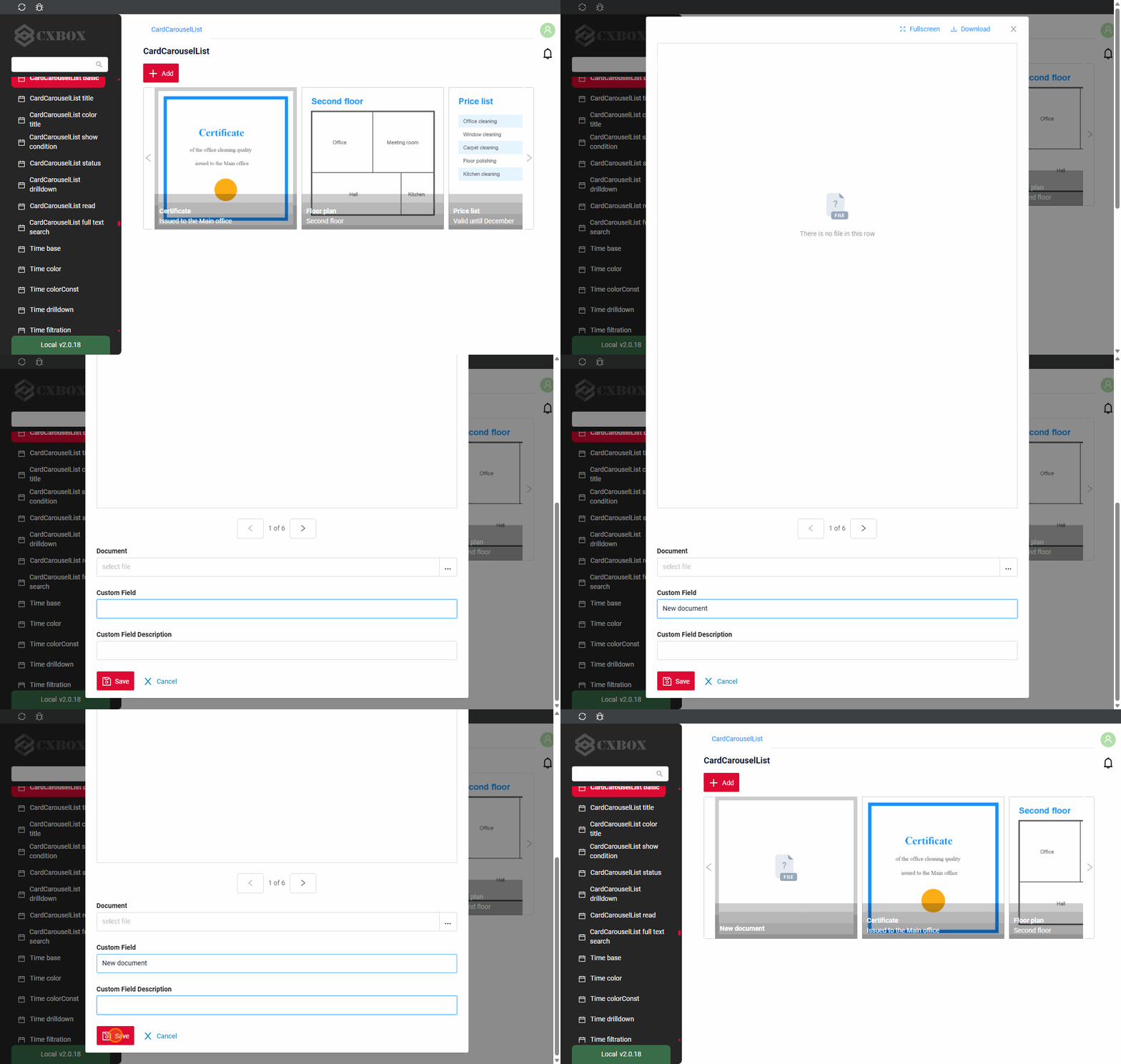
Create button enables you to create a new card by clicking the Add button. The file popup opens with a form under the file: the user uploads a file, fills the fields and saves the record.
Inline: not applicable: an empty card has no place to upload a file.With widget: Add opens a popup with an empty file preview and the form fromoptions.create. Save creates the record, Cancel removes the new card.With view: not applicable
Warning
The form must have type Form. A FormPopup is not shown in the popup.
How does it look?
How to add?
Example
Step 1 Add action create to corresponding VersionAwareResponseService.
Step 2 Create a Form widget for the popup.
Step 3 Add options.create and options.edit with "style": "popup" to the CardCarouselList widget.
Step 4 Add both widgets to the .view.json.
Edit
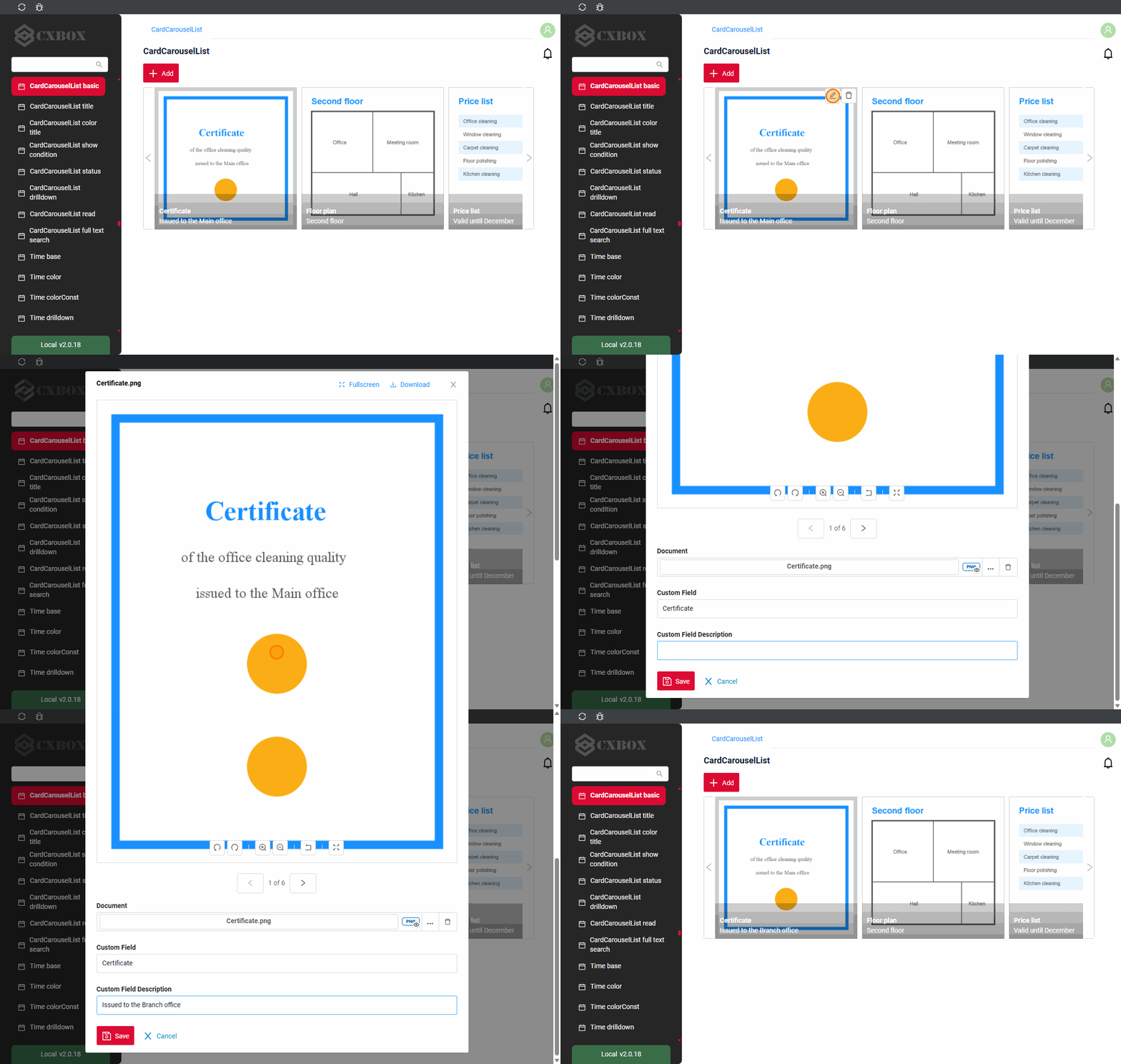
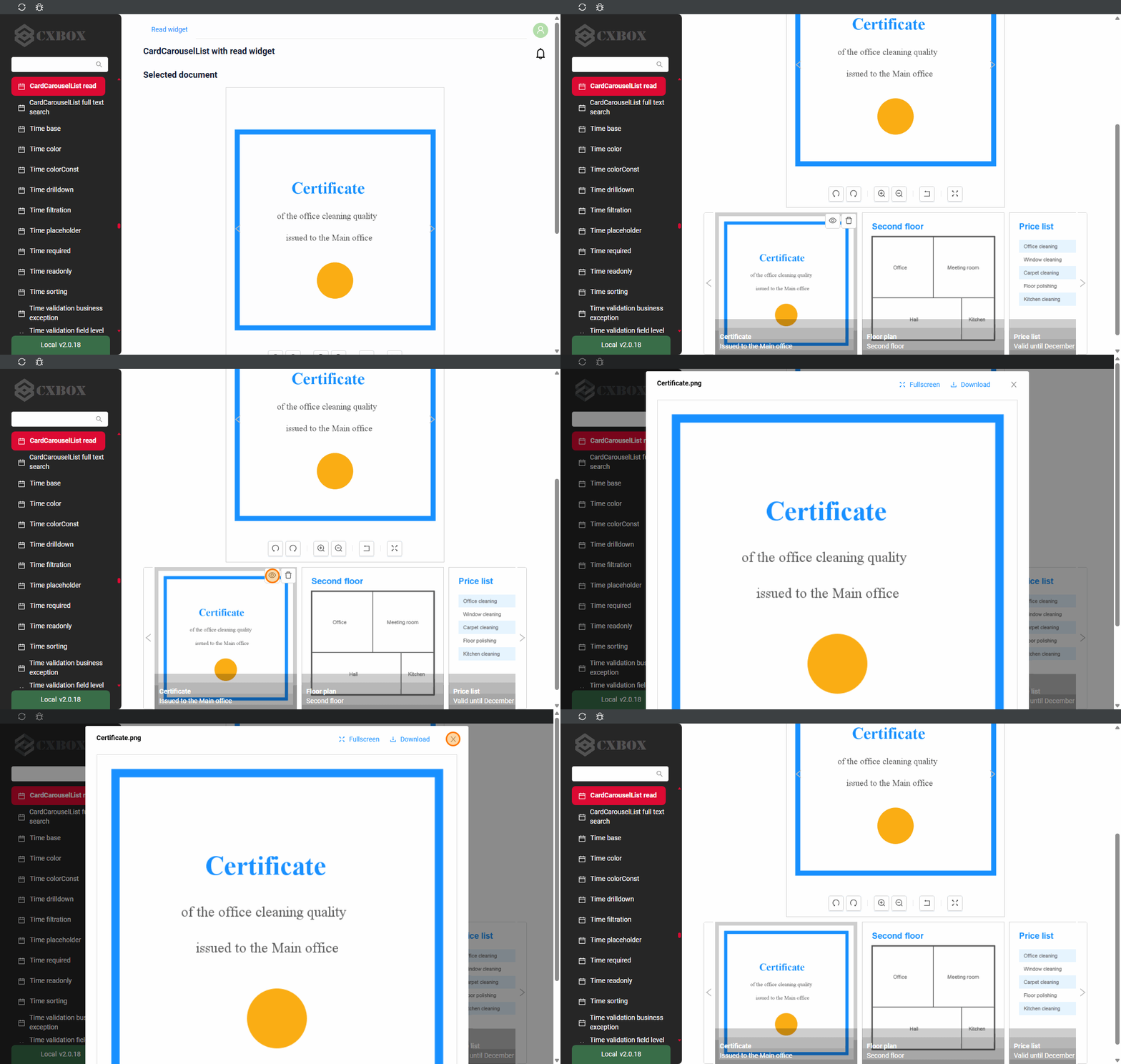
With options.edit the card has the edit icon. It opens a popup with the file and the form under it. Save saves the record and closes the popup.
Arrows at the bottom of the popup move to the previous or the next card.
Without options.edit the card has the eye icon. It opens the file in a popup for viewing.
How does it look?
How to add?
Example
see Create, Step 2 - Step 4.
Delete
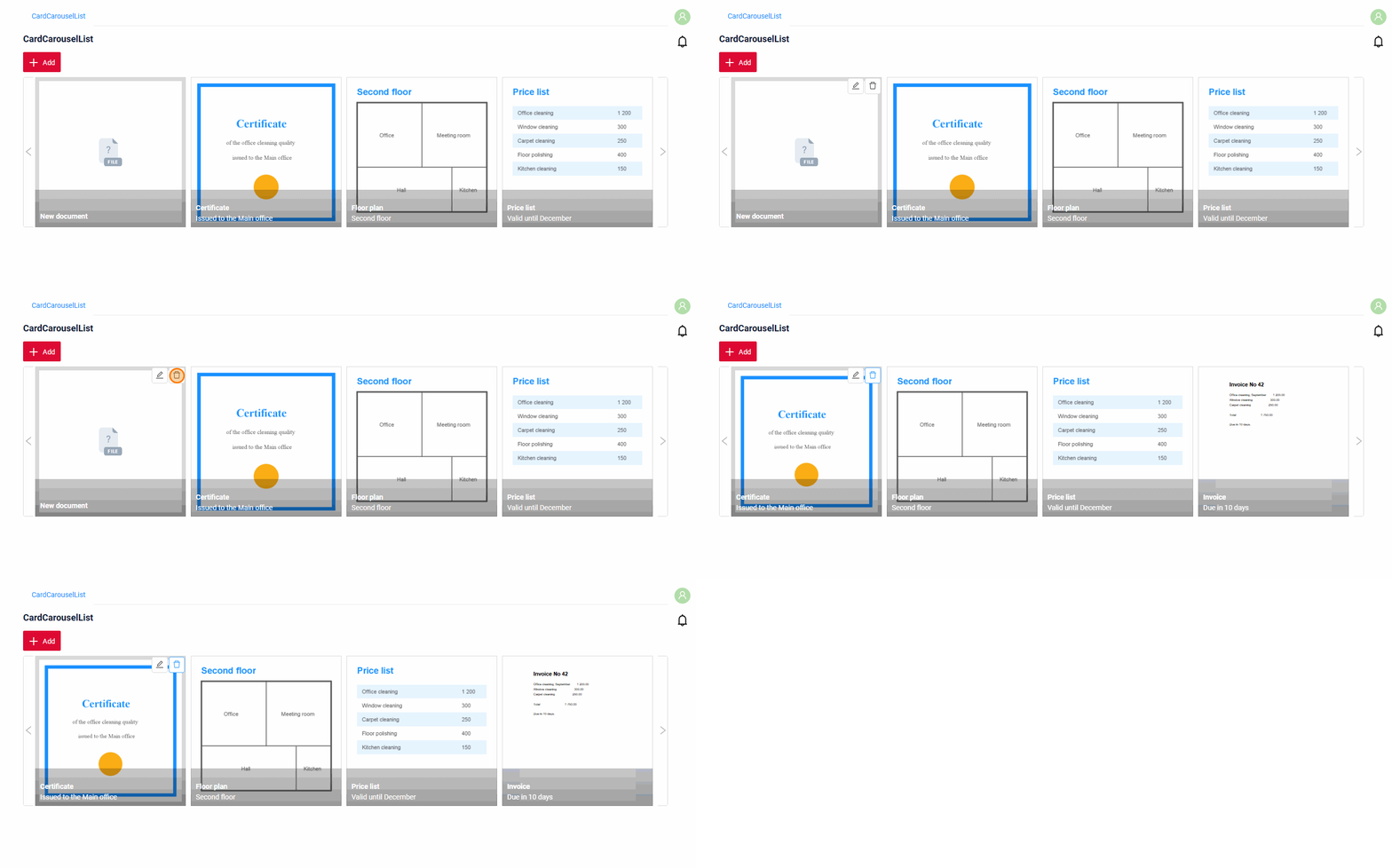
The delete icon deletes the record at once, like in List.
How does it look?
How to add?
Additional properties
Card options
options.card sets which fields are shown on the card. All keys are optional.
| Key | What it sets | Default |
|---|---|---|
valueFieldKey |
fileUpload field of the card | the first fileUpload field |
titleFieldKey |
field for the title | the file name |
descriptionFieldKey |
field for the description | no description |
With a description the title and the description are cut to one line. Without a description a long title wraps to the next lines.
How to add?
Card size
The size of a card is set on the fileUpload field of the card:
width: the width of the card in pixels. Default: 300.minRows: the height of the card in rows of 40 pixels. By default the card is square.
The strip shows as many cards as fit into the width of the widget.
Preview
The card shows a preview of the file when preview of the fileUpload field has "enabled": true: a picture or the first page of a PDF. Other files are shown with the icon of their type.
- Only
"mode": "inline"is supported. Other modes also work as inline and give a warning in the browser console. - Without
previewor with"enabled": falsethe card shows only the icon of the file type.
How to add?
Example
Add preview with "enabled": true and "mode": "inline" to the fileUpload field in .widget.json.
Status
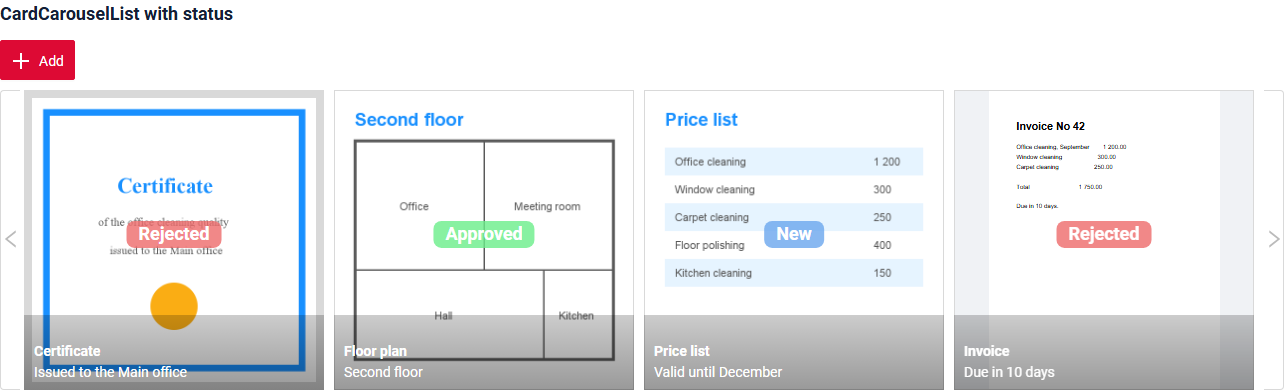
Status shows the value of a dictionary field in the middle of the card, over the preview. The color of the status is set like the title color: constant bgColor or calculated bgColorKey of the dictionary field.
Info
The widget takes the first field with type dictionary. There is no parameter to choose another dictionary field.
How does it look?
How to add?
Example
Step 1 Add a dictionary field and a field for its color to corresponding DataResponseDTO.
Step 2 Add the dictionary field with "bgColorKey" to .widget.json.
DrillDown
DrillDown allows you to navigate to another view from a card of the carousel.
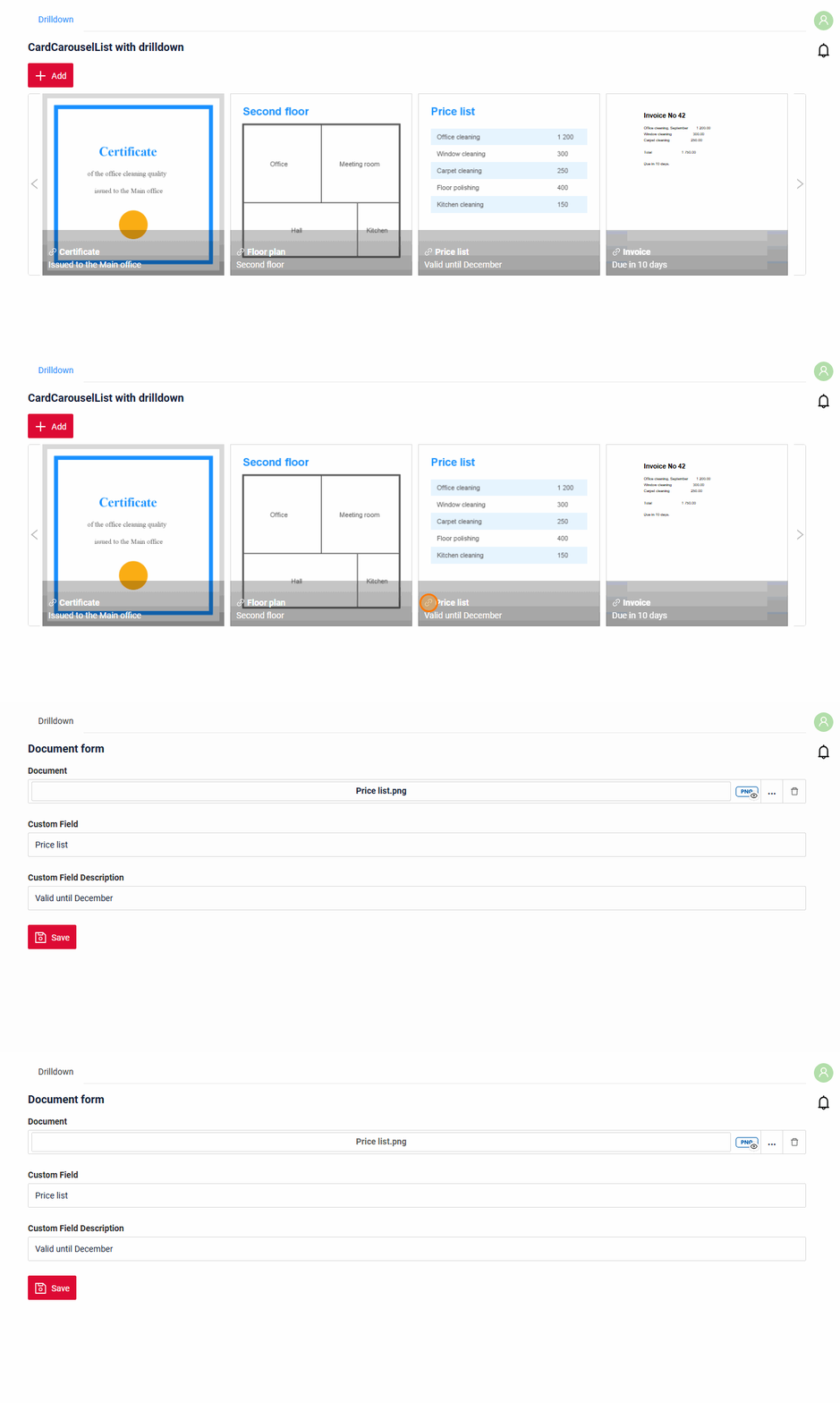
- The card title gets a link icon. A click on the title opens the target view.
- A click on other parts of the card (the preview, the description, the empty space) only selects the card, it does not open the link.
- The target view is calculated for each card, so every card can open its own record or its own view. In the sample the title opens the form of the record of the card.
How does it look?
How to add?
Example
Step 1 Add "drillDown": true to the fileUpload field of the card in .widget.json.
Step 2 Add fields.setDrilldown for the same fileUpload field to corresponding FieldMetaBuilder. The link is built for the record of each card.
Read widget
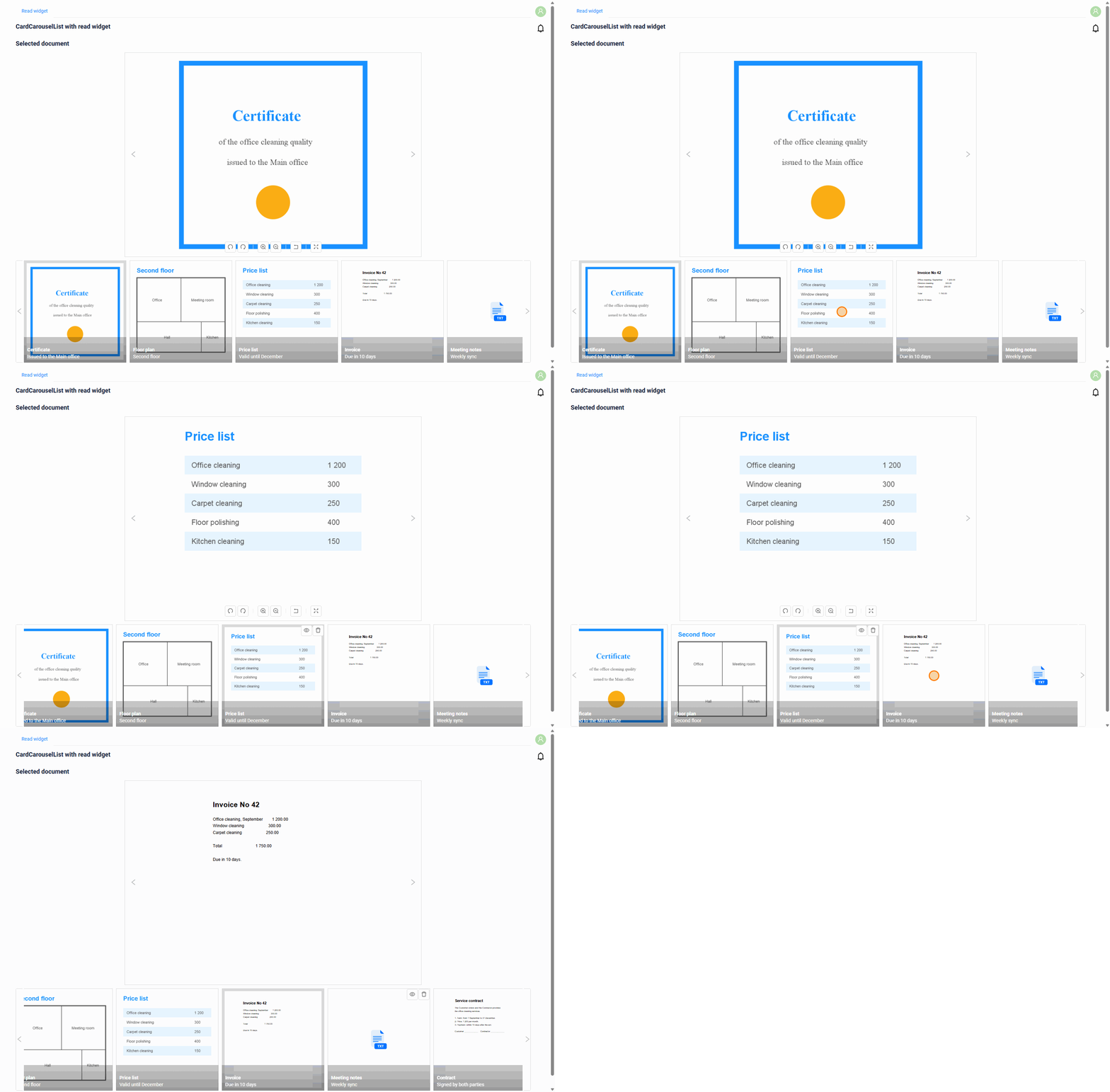
Read widget shows the file of the selected card in a large view above the strip. Arrows on the large view select the previous or the next card. A picture has buttons to rotate, zoom, reset and open it in full screen.
- The read widget is an Info or a Form widget with the same fileUpload field. Only the file preview is shown, other fields of the widget are not shown.
options.layoutof the read widget sets the size and the place of the preview:spanof the fileUpload field is its width,minRowsof the field is its height. To place the preview in the middle, put the fileUpload column between two columns of other fields: the read widget shows only the file, so these columns stay empty.
How does it look?
How to add?
Example
Step 1 Create an Info widget with the fileUpload field.
Step 2 Add options.read.widget to the CardCarouselList widget.
Step 3 Add both widgets to the .view.json.
Filtration
not applicable
FullTextSearch
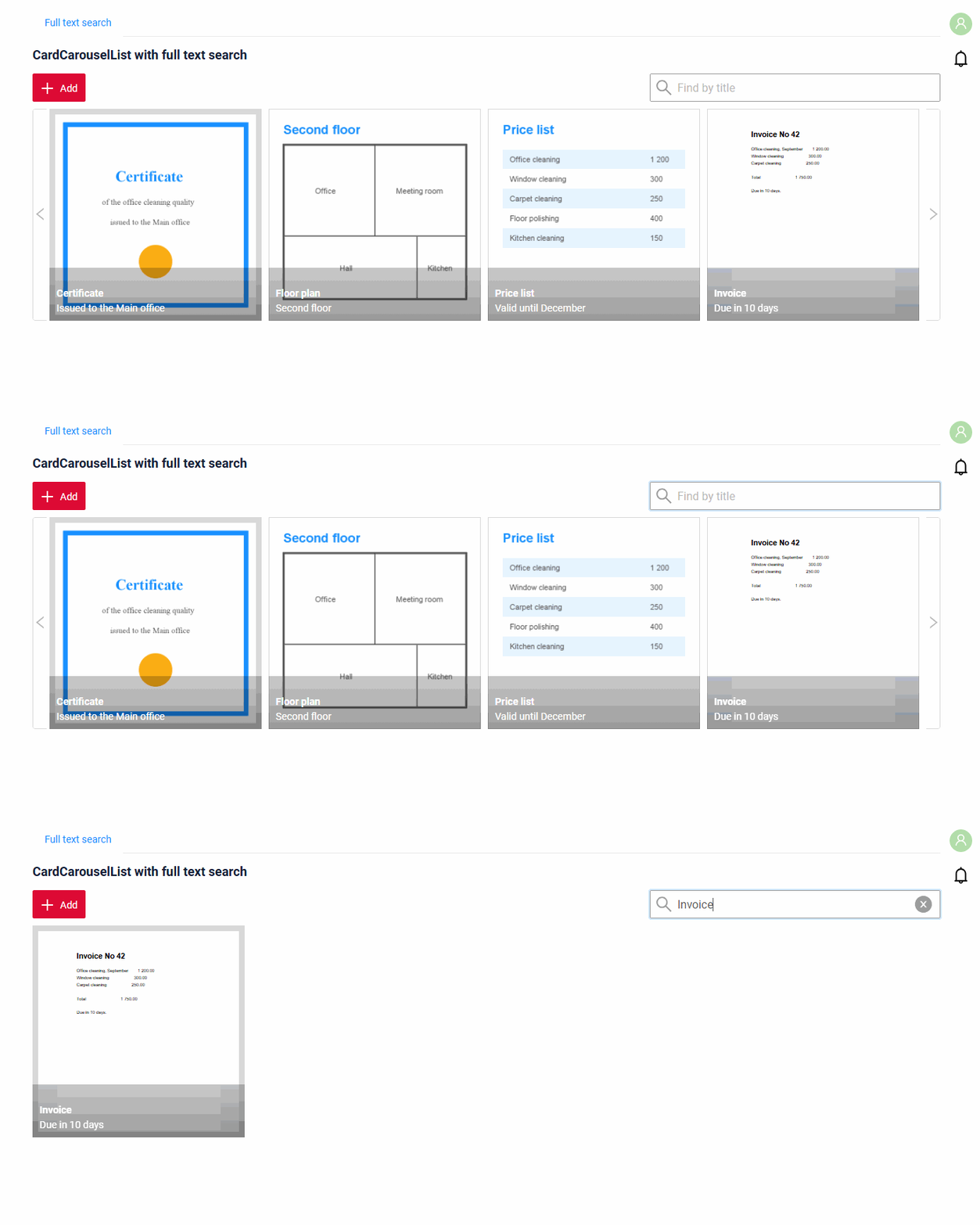
FullTextSearch - when the user types in the search box of the widget, the widget shows the cards that match the search query. The service filters the records, like in List.
How does it look?
see FullTextSearch
How to add?
Example
Step 1 Add fullTextSearch to options of .widget.json.
Step 2 Add the search specification to the repository.
Step 3 Apply it in getSpecification of the service.
Pagination
not applicable: the strip shows only the first page of the business component. The default page limit is 5 records.
To show more cards, set the page limit of the business component. see Default page limit
Export to Excel
not applicable
Multi-upload files
We have implemented multi-file upload. You can use a dedicated drag-and-drop zone or a standard button to select your files. Every uploaded file becomes a new card.
see more Multi-upload files
Customization of displayed columns
not applicable
Sorting
not applicable