HeaderWidget
HeaderWidget widget is a component for displaying a header.
- does not support control elements (e.g., action buttons or menus).
- used to highlight or emphasize a specific context on the current screen.
Basics
How does it look?

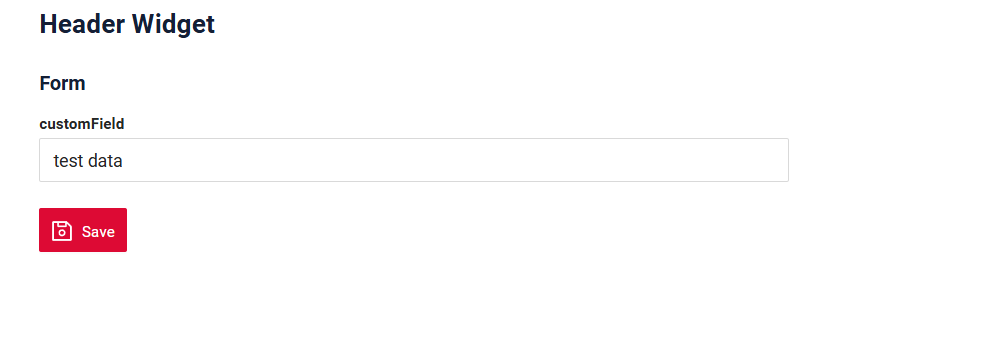
How to add?
Example
Step1 Create file .widget.json. with type = "HeaderWidget"
   {
     "name": "myexampleheaderwidget",
     "title": "HeaderWidget",
     "type": "HeaderWidget",
     "bc": "myexample",
     "fields": []
   }
Step2 Add widget to corresponding .view.json.
    {
      "name": "myexample",
      "title": "MyExample Form",
      "template": "DashboardView",
      "url": "/screen/myexample/view/myexample",
      "widgets": [
        {
          "widgetName": "secondlevelmenu",
          "position": 1,
          "gridWidth": 24
        },
        {
          "widgetName": "myexampleheaderwidget",
          "position": 2,
          "gridWidth": 24
        },
        {
          "widgetName": "myexampleform",
          "position": 3,
          "gridWidth": 24
        }
      ],
      "rolesAllowed": [
        "CXBOX_USER"
      ]
    }
Title
Title Basic
Title for widget.
There are types of:
constant title: shows constant text.calculated title: shows value provided in hidden text field, e.g. it can be calculated based on business logic of application
How does it look?
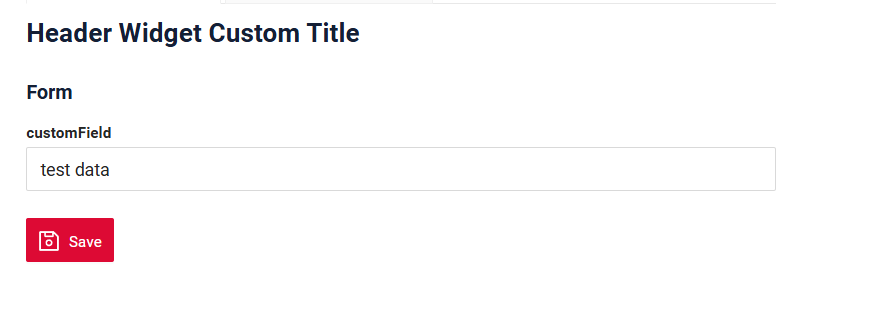
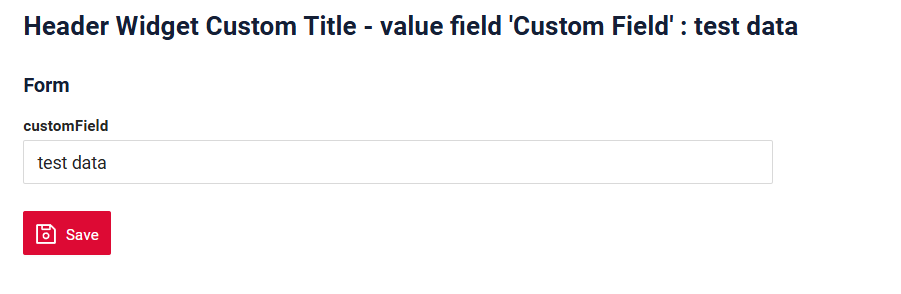
How to add?
Example
Step1 Add name for title to .widget.json.
{
  "name": "myexampleconst",
  "title": "HeaderWidget Custom Title",
  "type": "HeaderWidget",
  "bc": "myexample",
  "fields": [
  ]
}
Step1 Add ${customField} for title to .widget.json. Add customField with type hidden to corresponding .widget.json.
Info
To ensure a field value is received by the frontend and displayed in the header, it must be specified within the fields array.
{
  "name": "myexample",
  "title": "HeaderWidget Custom Title - value field 'Custom Field' : ${customField}",
  "type": "HeaderWidget",
  "bc": "myexample",
  "fields": [
    {
      "label": "customField",
      "key": "customField",
      "type": "hidden"
    }
  ]
}
Title Color
Title Color allows you to specify a color for a title. It can be constant or calculated.
Constant color*is a fixed color that doesn't change. It remains the same regardless of any factors in the application.
Calculated colorcan be used to change a title color dynamically. It changes depending on business logic or data in the application.
Info
Title colorization is applicable to the following fields: date, dateTime, dateTimeWithSeconds, number, money, percent, time, input, text, dictionary, radio, checkbox, pickList, inlinePickList, multivalue, multivalueHover.
How does it look?
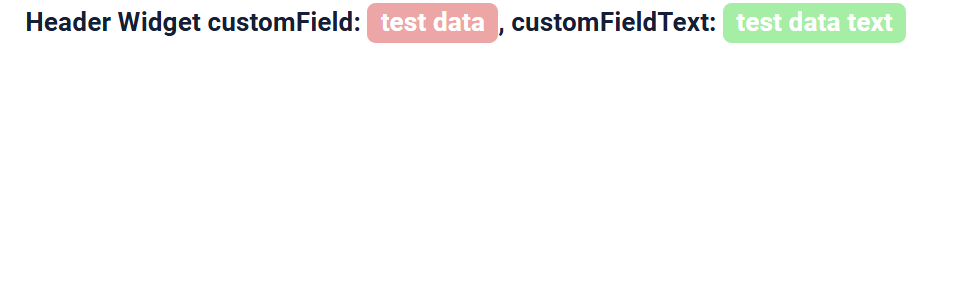
How to add?
Example
Step 1 Add custom field for color to corresponding DataResponseDTO. The field can contain a HEX color or be null.
    private String customFieldColor;
    private String customFieldTextColor;

    public MyExampleDTO(MyEntity entity) {
        this.id = entity.getId().toString();
        this.customField = entity.getCustomField();
        this.customFieldText = entity.getCustomFieldText();
        this.customFieldColor = "#edaa";
        this.customFieldTextColor = "#aeda";
    }
Step 2 Add in title field with ${customField}.
Add this field to the fields array with the Field hidden type and "bgColorKey" : custom field for color. The custom field for color itself is not needed in fields.
{
"label": "Custom Field",
"key": "customFieldText",
"type": "hidden",
"bgColorKey": "customFieldTextColor"
}
{
  "name": "myexampleheaderwidget",
  "title": "HeaderWidget customField: ${customField},  customFieldText: ${customFieldText}",
  "type": "HeaderWidget",
  "bc": "myexample",
  "fields": [
    {
      "label": "Custom Field Color",
      "key": "customField",
      "type": "hidden",
      "bgColorKey": "customFieldColor"
    },
    {
      "label": "Custom Field",
      "key": "customFieldText",
      "type": "hidden",
      "bgColorKey": "customFieldTextColor"
    }
  ]
}
Add "bgColor" : HEX color to .widget.json.
Add in title field with ${customField}
Info
To ensure a field value is received by the frontend and displayed in the header, it must be specified within the fields array.
{
  "name": "myexampleheaderwidgetconstcolor",
  "title": "HeaderWidget customField: ${customField},  customFieldText: ${customFieldText}",
  "type": "HeaderWidget",
  "bc": "myexample",
  "fields": [
    {
      "label": "Custom Field Color",
      "key": "customField",
      "type": "hidden",
      "bgColor": "#edaa"
    },
    {
      "label": "Custom Field",
      "key": "customFieldText",
      "type": "hidden",
      "bgColor": "#aeda"
    }
  ]
}
Show condition
see more showCondition
no show condition - recommended: widget always visible
show condition by current entity: condition can include boolean expression depending on current entity fields. Field updates will trigger condition recalculation only on save or if field is force active
show condition by parent entity: condition can include boolean expression depending on parent entity. Parent field updates will trigger condition recalculation only on save or if field is force active shown on same view
Tips
It is recommended not to use Show condition when possible, because wide usage of this feature makes application hard to support.
How does it look?
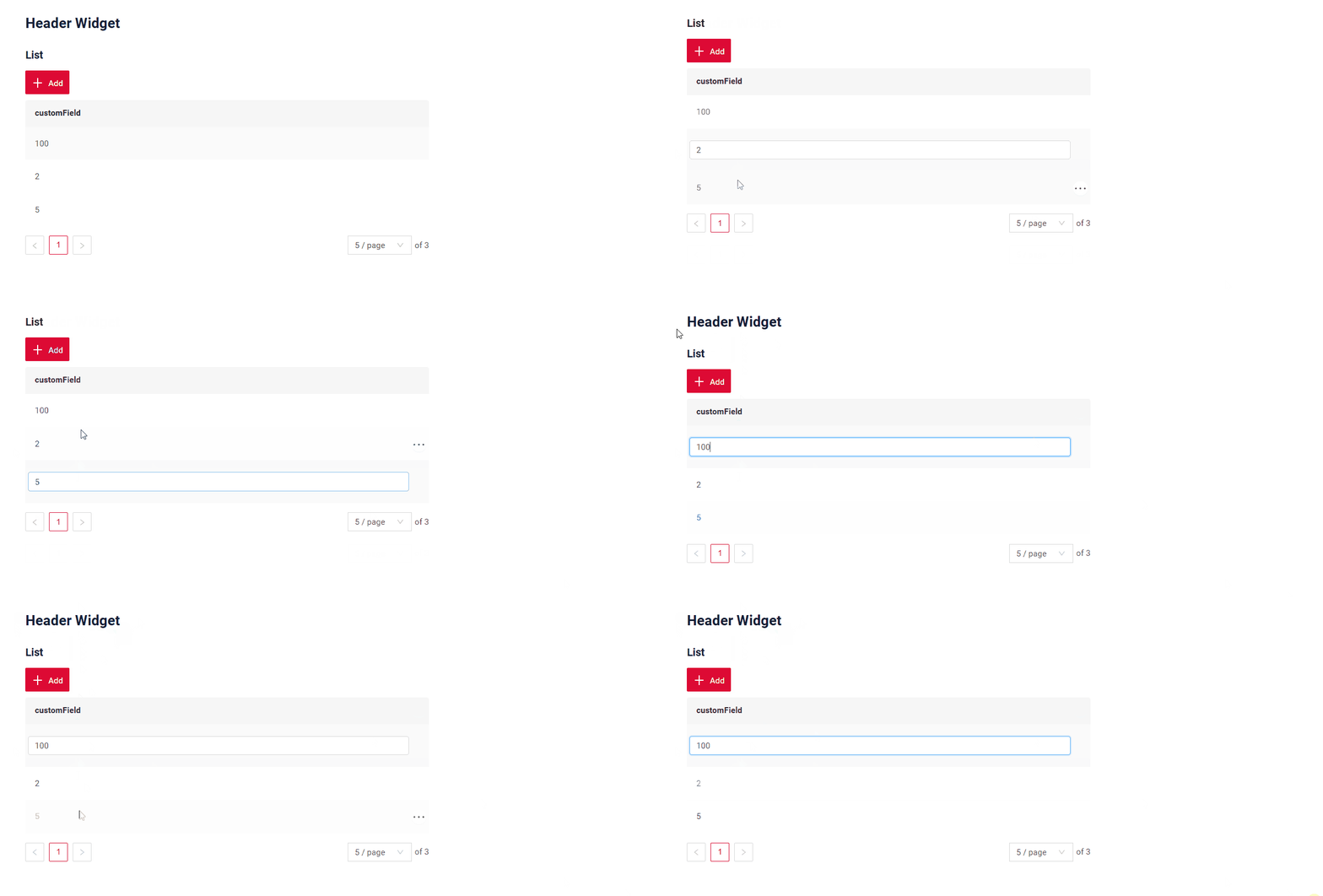
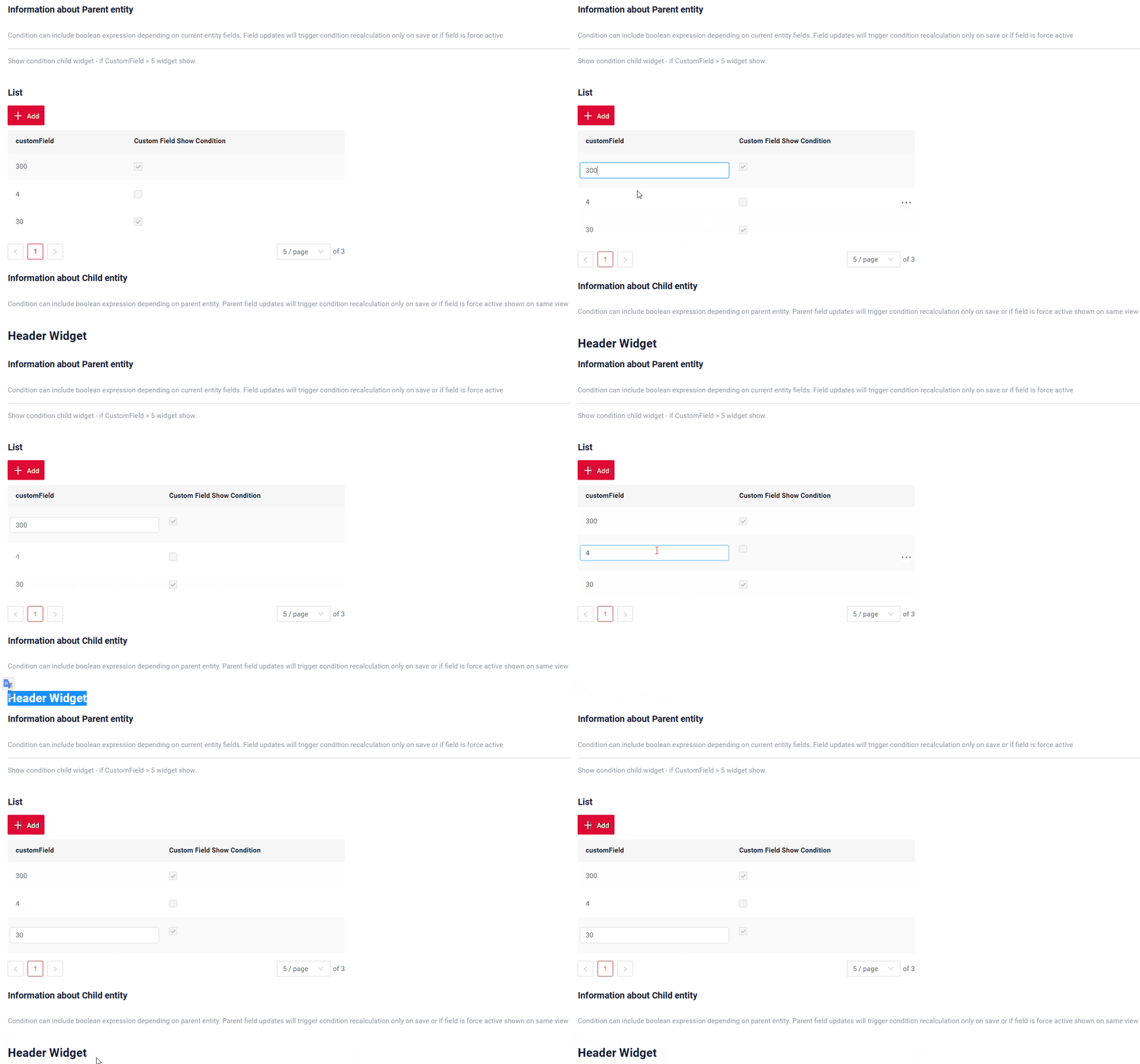
How to add?
Example
see Basic Live Sample · GitHub
Step1 Add showCondition to .widget.json. see more showCondition
Step1 Add showCondition to .widget.json. see more showCondition
{
  "name": "myexampleheader",
  "title": "HeaderWidget",
  "type": "HeaderWidget",
  "bc": "myexample",
  "showCondition": {
    "bcName": "myexample",
    "params": {
      "fieldKey": "customFieldShowCondition",
      "value": true
    }
  },
  "fields": [
  ]
}
Business component
This specifies the business component (BC) to which this headerwidget belongs. A business component represents a specific part of a system that handles a particular business logic or data.
see more Business component
Fields
This array is usually empty.
However, if you need to set properties of a field shown in the title (for example, a calculated color, see Title Color),
add this field with the Field hidden type.
Only fields used in title as ${customField} are taken from this array: a field that is not in the title and not in other widgets of the screen gets no value.
- "label"
Description: Field Title.
Type: String(optional).
- "key"
Description: Name field to corresponding DataResponseDTO.
Type: String(required).
- "type"
Description: Field hidden
Type: hidden.
How to add?
Example
Step 1 Download plugin download Intellij Plugin
Step 2 Add existing field to an existing headerwidget widget
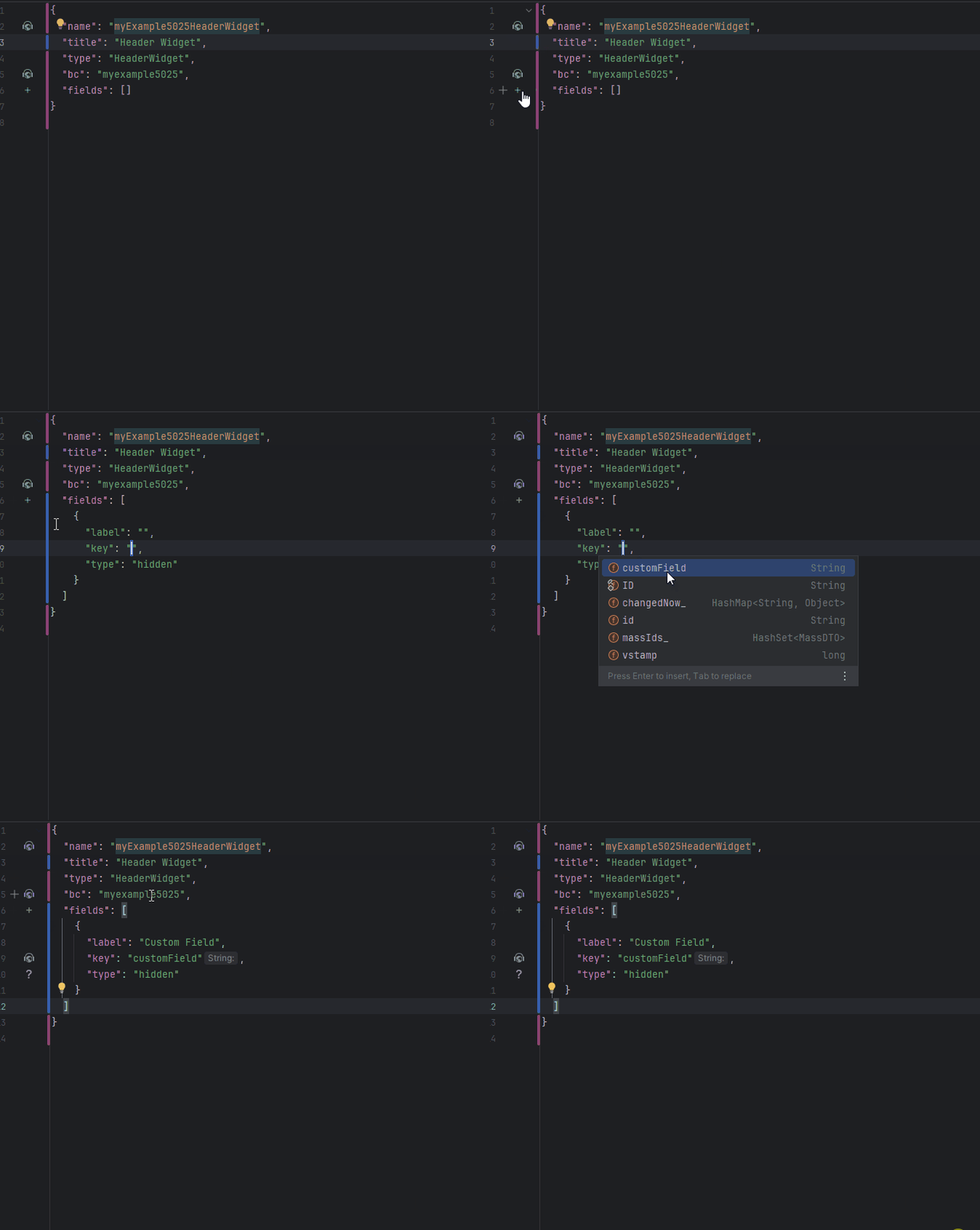
see more Fields
Options
This widget type does not support options
Standard Actions
This widget type does not support buttons