Mass operations without confirmation
Attention
For small and medium data volumes. Use for synchronous processing within a single transaction when the data size is up to 10,000 rows.
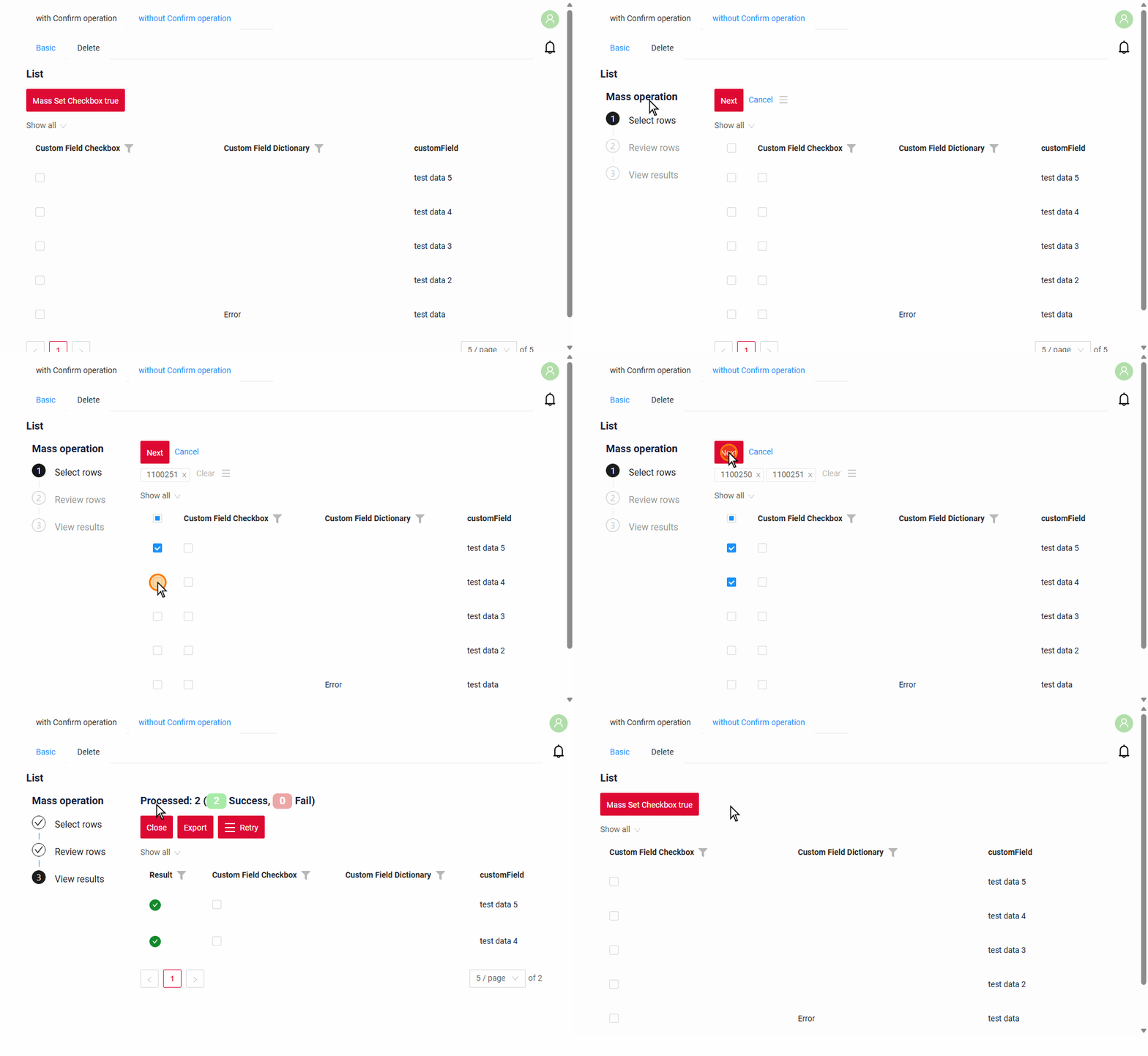

Mass operation without confirmation is a mass operation that is executed right after the rows are selected: the user clicks Apply, and the action is applied to all selected rows. The user does not enter any values.
Basic
It is used when the new values are known in advance or are calculated on the server, so the user only has to select the rows and press a button, for example:
- Change status — move all selected records to another status (for example, close all processed requests).
- Set a flag — set the same value in all selected rows (in the sample, the checkbox is set to
true). - Recalculate — recalculate the values of the selected rows by business rules without opening each record.
After the operation, the action can run a post-action, for example, show a message. It runs when the user clicks Close on Step 3.
The user sees the result for each row and can repeat the operation for the rows that failed, see Retry for failed rows.
After clicking on a mass operation, the user enters the mass-operation mode, which consists of several steps:
How does it look?
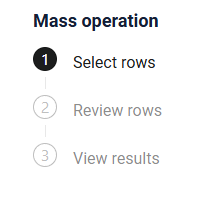
Specifics
- Mass operations become available only if there is at least one row in the table.
- All requests are executed using the ID of the first selected row!
- The operation runs in a single transaction: if an error occurs, the changes are rolled back for all selected rows.
- In GroupingHierarchy only rows with records can be selected: a group row without its own record (an empty group, a row of totals) has a disabled checkbox. From Step 2 the table shows only the groups with selected rows.
- Rows are only viewed during a mass operation, the file preview too: its arrows go through the rows, a row does not become active, the record form is not shown.
How to add?
Example
-
Step1 Add actionGroups massCheckboxTrue(Custom name) to corresponding .widget.json.
{ "name": "myexampleCheckboxTrueList", "title": "List", "type": "List", "bc": "myexample", "fields": [ { "title": "Id", "key": "id", "type": "hidden" }, { "title": "Custom Field Checkbox", "key": "customFieldCheckbox", "type": "checkbox" }, { "title": "Custom Field Dictionary", "key": "customFieldDictionary", "type": "dictionary" }, { "title": "customField", "key": "customField", "type": "input" } ], "options": { "actionGroups": { "include": [ "massCheckboxTrue", "save" ] }, "massOp": { "pickMapFieldKey": "id" } } } -
Step2 Create action massCheckboxTrue to corresponding AwareResponseService.
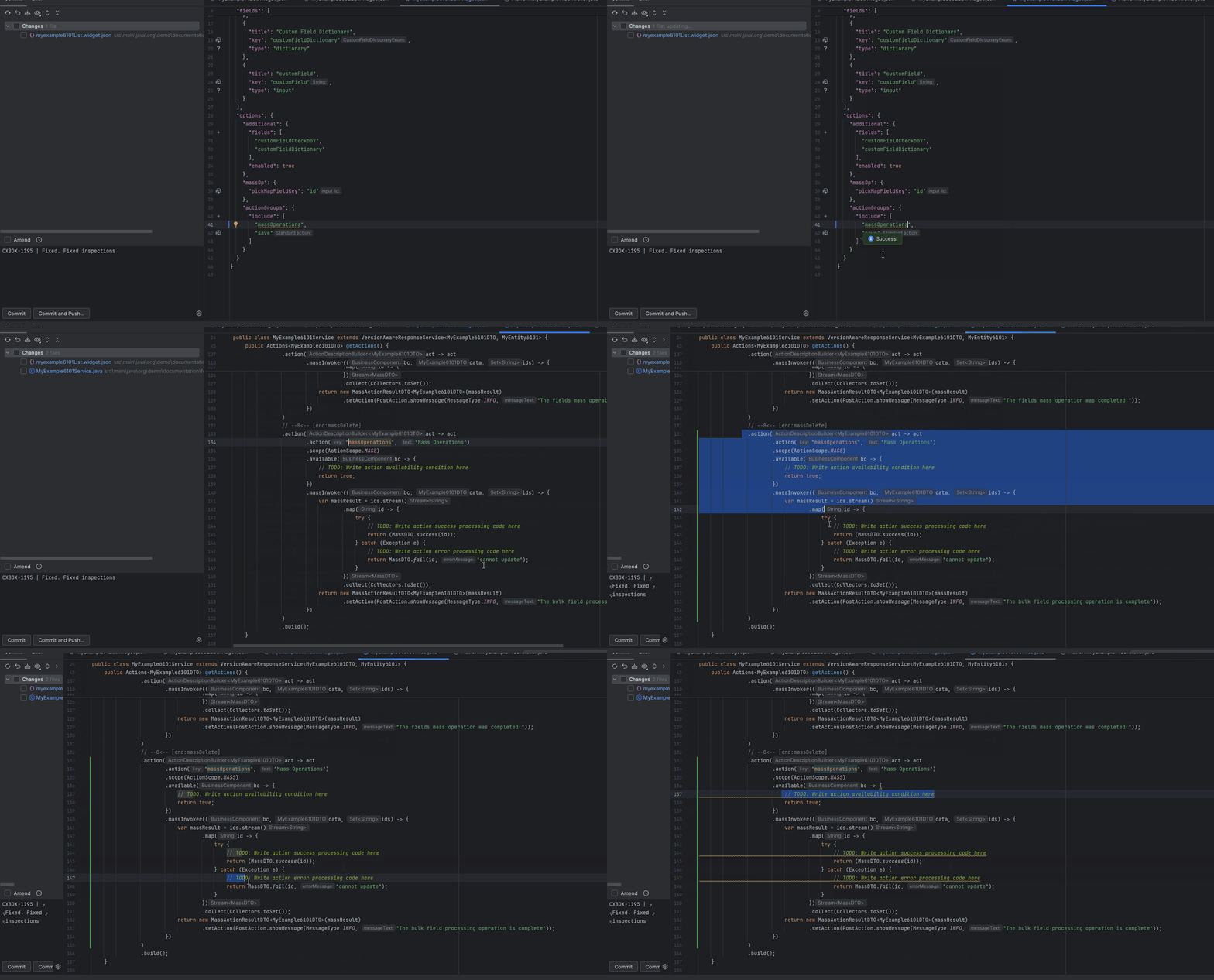
Step 1 Download plugin download Intellij Plugin
Step 2 Add a mass action to the corresponding service
                .action(act -> act
                        .action("massCheckboxTrue", "Mass Set Checkbox true")
                        .scope(ActionScope.MASS)
                        .massInvoker((bc, data, ids) -> {
                            var massResult = getMassDTO(data, ids, true);
                            return new MassActionResultDTO<MyExampleDTO>(massResult)
                                    .setAction(PostAction.showMessage(MessageType.INFO, "The fields mass operation was completed!"));
                        })
                )
Property:
-
.action("massCheckboxTrue", "Mass Set Checkbox true")"massCheckboxTrue"— the action name used internally by the backend and frontend."Mass Set Checkbox true"— title displayed in the UI.
-
.scope(ActionScope.MASS)Specifies that this is a mass action, applied to all selected rows in the grid. There is no
.withPreAction(...), so the confirmation step is not shown: the Apply button on Step 2 executes the action. -
.massInvoker((bc, data, ids) -> { ... })The main handler for the mass operation.
Parameters:
bc— business component context.data— data of the first selected row.ids— the set of IDs of all selected records.
Inside the handler: The method processes each record and returns:
MassDTO.success(id)- result successMassDTO.fail(id, "message")- result error
-
return new MassActionResultDTO<>(massResult)...The mass action result includes:
- success/failure information for each record,
-
a UI post-action.
-
.setAction(PostAction.showMessage(...))Displays a message in the UI when the user clicks Close on Step 3, not when the action is executed.
Parameters:
MessageType.INFO— message type."The fields mass operation was completed!"— message text.
-
Step 1. Select rows
How does it look?
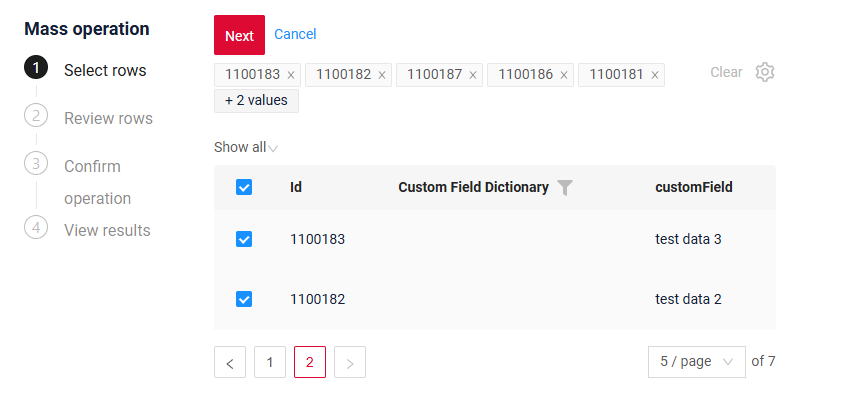
- Checkboxes for selecting rows are displayed in the first column of the table (true = the row is selected).
- Filtering and sorting remain available.
- Rows become non-editable while in mass-operation mode.
-
All selected rows are displayed above the table as chips.
- If the number of chips exceeds N, only the first N are shown; the rest are collapsed and replaced with the label “+N values”. Hovering over “+N values” displays a tooltip: “Move on to Step 2 to see all the chosen rows.”
- A “Clear” button is displayed next to the chips. Clicking Clear deselects all checkboxes and removes all chips.
-
A gear icon is available for chip-related actions, containing the option “Select from file” (importing rows from a file exported on Step 3). Rows are matched only by ID: the exported Excel file keeps it in a hidden column.

-
Available actions:
- Cancel — exits mass-operation mode.
- Next — proceeds to Step 2, where only the selected rows are displayed.
Step 2. Review rows
How does it look?
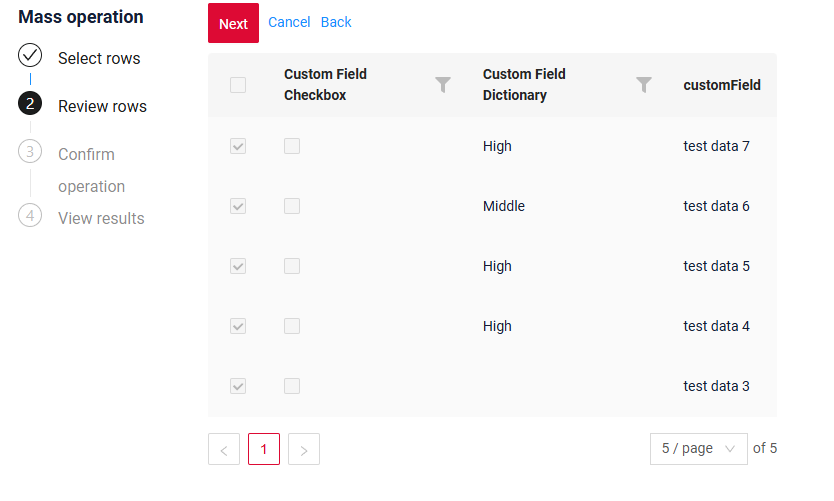
- Selected rows from Step 1. Select rows are displayed in read-only mode.
- Checkboxes are disabled, and rows cannot be edited.
- Filtering and sorting of the selected rows remain available.
-
Available actions:
- Apply — immediately executes the mass action and navigates to the View results step.
- Back — returns the user to Step 1 (row selection). When returning to Step 1, the table resets to the first page and all filters are cleared.
- Cancel — exits mass-operation mode without applying any changes.
Step 3. View results
How does it look?
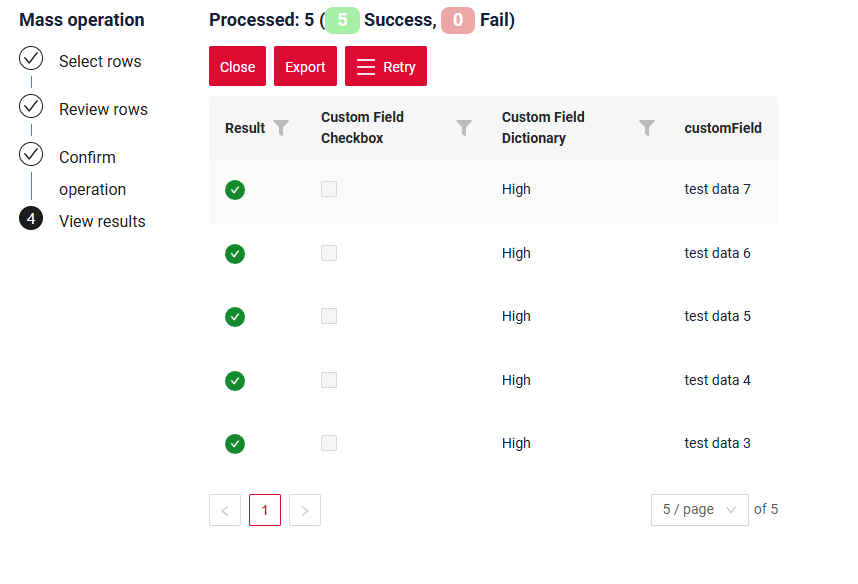
After performing a mass operation, the status for each row in the table is displayed:
- Success – the operation was completed successfully
- Fail – the operation was not completed
The widget header displays the number of processed rows (including the number of successful/failed rows).
Filtering/sorting of selected rows is available for any column, including status.
Available actions:
- Close – Exit the mass operation mode. The user returns to the normal table view, taking into account all changes made by the operation. The postAction of the mass action (for example, a message) runs at this moment, not when the action is executed.
-
Export – Export rows to a file.
- Ability to filter/sort the table before export.
- File format fully compatible with uploading on Step 1 (Select from file).
- Tooltip on hover: “Export of selected rows. You can use this file on Step 1 via ‘Select from File.’”
- After export, display a notification: “File exported successfully”
-
Retry, menu item Export failed – Export all rows with the status “Fail”.
- The table is automatically filtered by failed rows.
- File format fully compatible with uploading on Step 1 (Select from file).
- Tooltip on hover: “A file with failed rows will be downloaded. To retry the operation for these rows, upload this file on Step 1 via ‘Select from File.’”
Retry for failed rows
The operation is repeated for the failed rows in three steps:
- Export — on Step 3 click Retry → Export failed. An Excel file with the failed rows is downloaded.
- Upload — start the mass operation again and on Step 1 select Select from file in the gear menu. The rows from the file become selected. Rows are matched only by ID: the exported file keeps it in a hidden column, so the file does not need to be edited.
- Run again — go through the steps of the mass operation as usual.